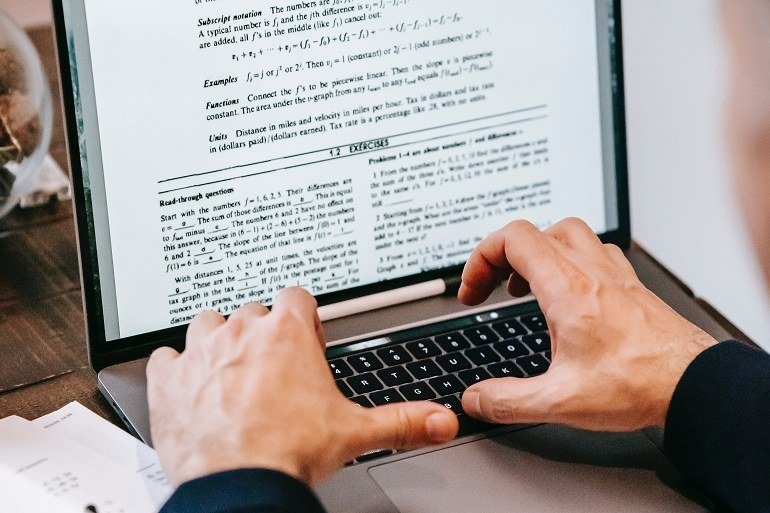
Can ChatGPT read PDF files? Yes — upload one and start asking questions. But “can it read” and “can it read well” are different questions, and the difference matters when the PDF is a contract, a research paper, or your thesis draft. Here’s the complete guide: what works, what breaks, and how to get reliable results.
Can ChatGPT read pdf files?
The basics: uploading and asking
Click the attachment/paperclip icon in the chat input, select your PDF, wait for processing, then ask. “Summarize this document.” “What are the key risks in section 4?” “Extract all the dates and deadlines.” It handles text-based PDFs fluently — the PDF format‘s text layer is read directly. Per OpenAI’s file upload help, there are size and page limits that evolve — check current docs if you’re pushing boundaries, but typical documents (reports, papers, contracts under ~100 pages) work fine.
What works great
- Summarization: “Give me the 10 key points” of a long report. Consistently excellent — this is the #1 PDF use case for a reason.
- Targeted Q&A: “What does it say about termination clauses?” Faster than Ctrl+F because it understands paraphrase — “cancellation,” “ending the agreement,” and “termination” all match.
- Data extraction: Pulling structured info — dates, figures, names, obligations — into tables. Define your columns explicitly for best results.
- Comparison: Upload two PDFs: “highlight the differences between these contracts.” Genuinely powerful for redlining and review.
- Explanation: “Explain section 7 in plain English” for dense technical or legal documents. The jargon-to-English translation is superb.
- Cross-document synthesis: Multiple PDFs — “what do these three papers agree on?” See AI for literature reviews for the academic version of this workflow.
What breaks (know the limits)
- Scanned/image PDFs: If the PDF is photos of pages (no text layer), the AI sees images, not text. Quality varies — clean scans work okay-ish, messy ones don’t. OCR it first for reliable results.
- Complex layouts: Multi-column academic papers, tables spanning pages, footnotes, text boxes — the reading order gets scrambled. “What does Table 3 show?” might pull from the wrong table. Verify against the original.
- Very long documents: Hundred-page-plus PDFs strain context limits. The AI may “forget” early sections or skim. Strategy: process in chunks (“analyze pages 1-30, then I’ll upload the next section”) or ask targeted questions rather than “summarize everything.”
- Precise citation: “What page is that on?” — page numbers are unreliable; ask for section names or quote the surrounding text instead.
- Visual elements: Charts, diagrams, and figures are described approximately, not read precisely. Don’t ask it to extract exact values from a chart image — verify visually yourself.
Pro techniques
- Set the frame first: “I’m reviewing this contract as a potential vendor. Flag anything unusual or risky.” Context focuses the analysis enormously.
- Ask for structure: “Summarize as: purpose, key terms, obligations, risks, open questions.” Structured output beats freeform for documents.
- Demand quotes: “For each risk you identify, quote the exact language.” This forces grounding and makes verification instant.
- Iterate deeper: Start broad (“summarize”), then drill (“tell me more about the liability cap,” “what’s missing compared to a standard agreement?”). The second and third questions are where the value lives.
- Check the critical bits yourself: For contracts, compliance docs, or anything with consequences — AI accelerates review; it doesn’t replace your eyes on the key clauses.
Privacy: the mandatory warning
Uploaded PDFs go to OpenAI’s servers. Don’t upload: documents with other people’s private data you have no right to share, credentials or keys embedded in documents, highly sensitive business information (use enterprise tools with proper data agreements instead), or anything legally privileged without understanding your tool’s data policies. The convenience is real; so is the exposure. For sensitive document work, consider local models where the file never leaves your machine.
Going further
Batch processing multiple PDFs
One PDF is a conversation; ten is a workflow. For multi-document jobs: process sequentially with a standard template — “for each document, extract: [your fields]” keeps outputs comparable. Build the comparison table incrementally — after each document, ask it to update the running comparison rather than re-doing everything (saves context and keeps consistency). Watch the context budget — with many documents, summarize each one first (saving the summaries), then analyze across summaries rather than full texts. Name things consistently — “Document A,” “the Q3 report” — so cross-references stay clear. The multi-PDF workflow is where AI’s advantage compounds most dramatically: the human alternative (spreading ten reports across your desk) doesn’t scale, but the AI approach barely notices the difference between three documents and thirty.
PDF analysis is a gateway drug to serious document workflows: AI for deep research for multi-source investigation, literature review techniques for academics, and — when you need to get content out of ChatGPT into documents — export ChatGPT chats. The pattern to internalize: AI reads faster than you, you judge better than it. Let it do the reading; keep the judging.