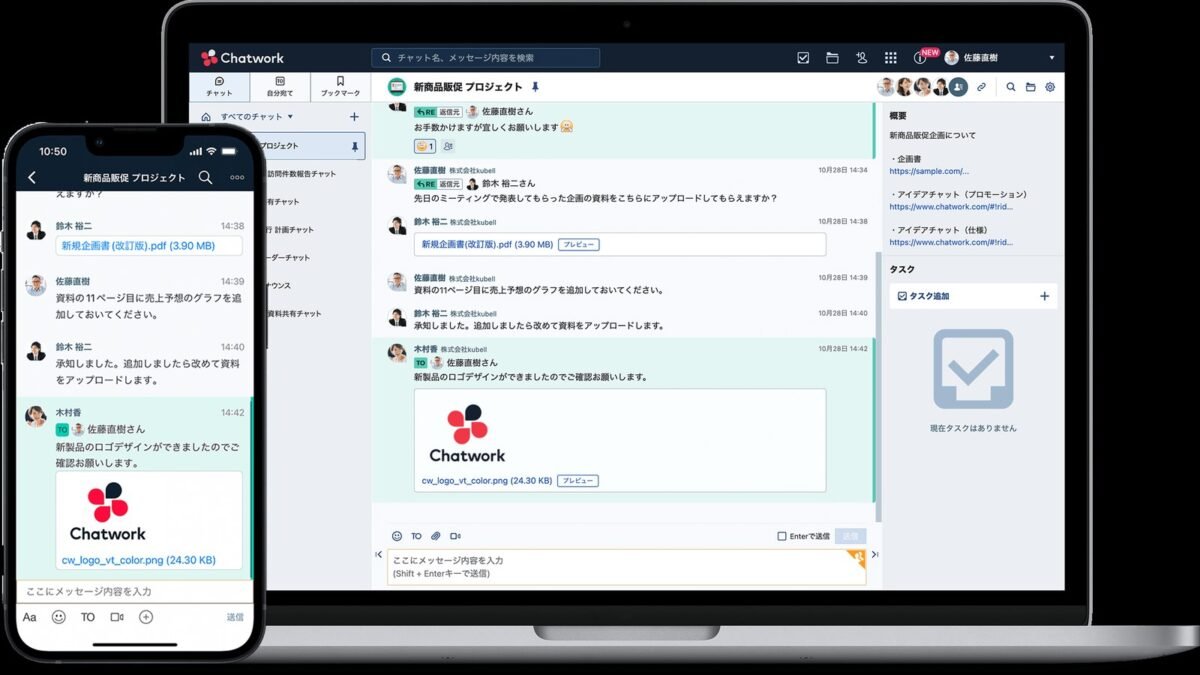
Here’s a question I get constantly: how to use ChatGPT on mobile vs desktop differences — what the differences are, and whether it’s the same thing in a smaller window? Short answer — they’re the same AI, but the experience differs more than you’d expect. I’ve used both daily for over a year, and there are real trade-offs: voice mode shines on mobile, deep work is better on desktop, and a few features are flat-out missing on one or the other.
Let’s break down how to use ChatGPT on mobile vs desktop, and the differences that actually matter.
The Core Experience: Same Brain, Different Body
First, the important part: the underlying model is identical. Whether you type on your phone or your laptop, you’re talking to the same ChatGPT with the same knowledge and capabilities. Your chat history syncs across both. Start a conversation on desktop, continue it on the train — seamless.
Where things diverge is the interface around that brain, and the interface changes what the tool is good for.
Where Mobile Wins
The mobile app (iOS and Android) has a few genuine advantages:
- Voice mode is the star. Tap the microphone and have a real back-and-forth conversation. On mobile this feels natural — like calling a smart friend. On desktop, voice exists but feels bolted on. If you want the details, our voice mode on phone guide walks through setup.
- Camera integration. Point your phone at anything — a menu in another language, a broken appliance, a math problem on paper — and ask about it. Desktop can’t do this (well, you can upload photos, but it’s clunkier).
- Always with you. Quick questions, translations on the go, settling debates at dinner. The friction is near zero.
- Dictation. Talking is faster than typing for most people, and the mobile app’s speech-to-text is excellent.
Where Desktop Wins
For anything resembling real work, desktop is still king:
- Long-form writing and editing. Try editing a 2,000-word draft on a phone keyboard. Enough said.
- File uploads and analysis. Drag a spreadsheet or PDF into the browser. On mobile, file handling is fiddly.
- Multitasking. ChatGPT in one tab, your work in another, copy-paste between them. Mobile app-switching kills flow.
- Canvas and code. The side-by-side editing workspace and code blocks are dramatically better with a real screen and keyboard.
- Custom GPTs and settings. Some deeper settings and GPT builder features are desktop-only or desktop-first.
I’ve tested this myself: a research task that took me 25 minutes on desktop took nearly an hour on mobile, mostly fighting the interface. The AI was equally smart in both — my thumbs were the bottleneck.
How to Use ChatGPT on Mobile vs Desktop: Feature Differences
Here’s the honest comparison table from my own usage:
- Voice conversations: Mobile ★★★★★, Desktop ★★★☆☆
- Photo/camera input: Mobile ★★★★★, Desktop ★★★☆☆
- Long writing sessions: Mobile ★★☆☆☆, Desktop ★★★★★
- Code work: Mobile ★★☆☆☆, Desktop ★★★★★
- Quick Q&A: Mobile ★★★★★, Desktop ★★★★☆
- File analysis: Mobile ★★★☆☆, Desktop ★★★★★
One more thing worth knowing: Plus subscribers get the same benefits on both platforms — higher limits, faster responses, priority access. Our piece on whether Plus benefits apply on mobile confirms the details.
Which AI Chatbot Has the Best Mobile App, Though?
Fair question — if mobile is your main way of using AI, the app quality matters a lot. ChatGPT’s app is polished and fast, Claude’s is clean but more limited, and Gemini has the Android home-field advantage (it’s basically built into the OS). We ranked them all in our best AI chatbot mobile app comparison if you’re deciding.
My Actual Workflow (Steal It)
Here’s how I split my own usage, and I’d suggest something similar:
- Mobile: voice brainstorming on walks, quick facts, photo questions, translations, settling arguments, capturing ideas via dictation.
- Desktop: writing, coding, data analysis, research reports, anything with files, anything longer than 10 minutes.
The magic is that they share history, so the split is frictionless. Brainstorm on your phone during your commute, then open the same chat on your laptop at your desk and turn it into a finished document.
How to Use ChatGPT on Mobile vs Desktop Differences: Syncing Tips
A practical detail that makes the mobile/desktop split work: ChatGPT’s cross-device sync is excellent, but only if you organize for it. Name your important chats clearly (“Q3 marketing plan” not “New chat”) so you can find them on the other device. Pin the 2-3 conversations you’re actively working on. Use the search function — it searches across all your history, which is a lifesaver when you remember dictating an idea on your phone but can’t remember which chat it was in.
One workflow I love: start messy on mobile, finish clean on desktop. Dictate a rambling voice brainstorm during a walk — don’t worry about structure. Later, open that chat on desktop and prompt: “Turn my rambling notes above into a structured outline.” The AI bridges the gap between mobile capture and desktop production beautifully.
Also: check your app settings for data controls on both devices. Privacy settings sync, but it’s worth confirming on each device — especially the “improve the model” training toggle and chat history settings. Five minutes of setup, then forget about it.
The Takeaway
How to use ChatGPT on mobile vs desktop comes down to this: mobile is for capturing and conversing, desktop is for creating and analyzing. Neither replaces the other. Install the app, bookmark the site, and let each do what it’s good at. And if you’re still on the fence about the paid tier, the official ChatGPT page lays out exactly what Plus adds on both platforms.