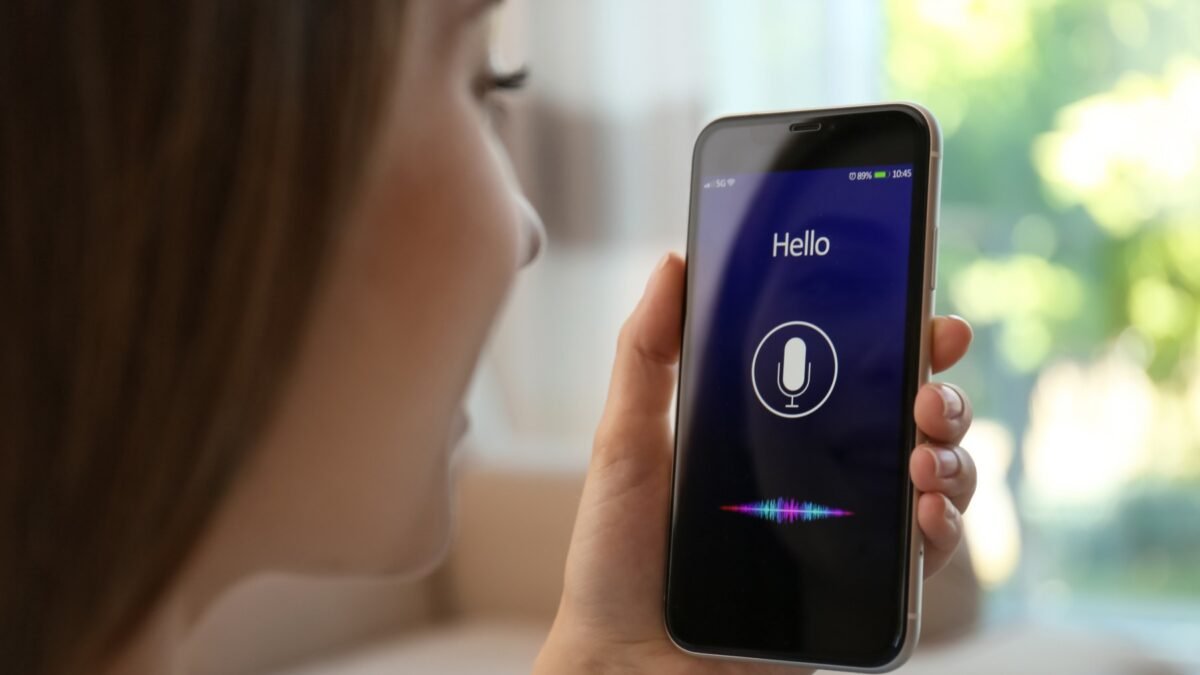
Typing is the bottleneck. You think at conversation speed and type at a fraction of it — which is why voice mode feels like shifting into a higher gear. How to use ChatGPT voice mode on phone? It’s simple to start and surprisingly deep once you learn the tricks. This is the guide I wish I’d had: setup, technique, and the use cases where voice genuinely beats typing.
How to use ChatGPT voice mode on phone
Getting started (2 minutes)
Open the ChatGPT mobile app, tap the voice icon (the headset/waveform symbol near the input box), grant microphone permission, and start talking. First run: pick a voice you like — you’ll be hearing a lot of it, so choose one that doesn’t grate after ten minutes. That’s the setup. Per the OpenAI voice FAQ, voice conversations work on the free tier with limits and more generously on paid plans. Use headphones in noisy environments — the mic picks up everything, and echo from your phone speaker confuses the turn-taking.
How to talk to it (it’s different from typing)
- Speak in complete thoughts, then pause. The AI detects pauses as turn-endings. Trailing off mid-thought gets you interrupted — finish the thought, then stop.
- You can interrupt. Just start talking — it stops and listens. This makes voice conversations genuinely conversational rather than walkie-talkie.
- Be more verbose than in text. Typing rewards brevity; voice rewards completeness. Ramble a little — the AI handles messy spoken context well.
- Correct by talking: “No, I meant the other option” or “shorter, please” — conversational corrections work naturally.
- Ask for the transcript: “Send me a summary of what we just discussed as text” — critical for anything you need to keep. Voice is ephemeral; convert the valuable parts to text.
Where voice mode shines (real use cases)
Thinking out loud
The killer app. Talk through a problem — the business decision, the difficult email, the project plan — and let the AI reflect, question, and organize. Speaking activates different thinking than typing; many people find they think better out loud with an intelligent listener. It’s rubber-duck debugging for life.
Learning and language practice
Have it explain concepts conversationally, quiz you (“test me on Spanish past tenses”), or role-play scenarios (job interviews, difficult conversations, negotiations). The back-and-forth of voice beats reading for retention — and for language learning specifically, speaking practice with instant correction is invaluable.
Hands-busy moments
Cooking (“walk me through this recipe step by step”), driving (“summarize the key points of that article I saved”), exercising (“quiz me on the presentation while I run”), DIY (“what do I do after disconnecting the wires?”). Anywhere your hands and eyes are occupied but your mind is free.
Companionship and brainstorming
Say what you will about AI companionship — for brainstorming, ideation, and working through ideas, voice mode’s fluidity beats typing. The lower friction means more ideas surfaced, which is the whole game in divergent thinking.
Where it frustrates (honest limits)
Precision tasks: coding, detailed editing, anything requiring exact text — voice is the wrong interface; switch to typing. Noisy environments: transcription errors compound; what you said isn’t what it heard. Privacy: you’re speaking aloud — don’t discuss sensitive topics in public or around others. Long outputs: listening to a 5-minute answer is tedious; ask for concise responses or switch to text for deep dives. It’s not a phone call: no actual calling, no integration with your phone app — it’s a conversation with AI, not a communication tool.
Power tips
- Set the verbosity: “Keep your responses under 30 seconds” or “give me the short version first.” Voice answers default long; constrain them.
- Use it for capture: “Take notes on what I’m about to say” — brain-dump verbally, get organized text back. Pairs beautifully with ChatGPT for daily planning.
- Background mode: keep the conversation going while using other apps — great for cooking/working with reference material.
- Voice selection matters: some voices handle technical content better, others are warmer for conversation. Experiment.
- Combine with your phone’s assistant: AI assistant for Android and AI assistant for iPhone cover the system-level voice control; use each for what it’s best at.
Voice + text: the combo workflow
The advanced move isn’t choosing voice or text — it’s choreographing both. The pattern: think in voice, refine in text. Brainstorm aloud (voice captures the flow of thinking), then say “summarize the key points as a bulleted list” and switch to text for precise editing. Or: dictate the rough draft by voice, then edit on screen where precision matters. Voice is the divergence tool (generating, exploring, thinking); text is the convergence tool (structuring, refining, finalizing). Users who master the handoff — speaking the messy middle, typing the sharp edges — get the best of both bandwidths. Try it on your next real task: you’ll feel the difference in the first ten minutes.
The shift voice mode represents: AI interaction moving from composition (careful typed prompts) to conversation (thinking aloud with a smart partner). Lower friction, higher bandwidth, different thinking. OpenAI keeps improving the naturalness — interruption handling, emotional tone, background noise resilience — and each generation makes the typed interface feel a little more like faxing. Try thinking out loud for a week. Most people don’t go back.