
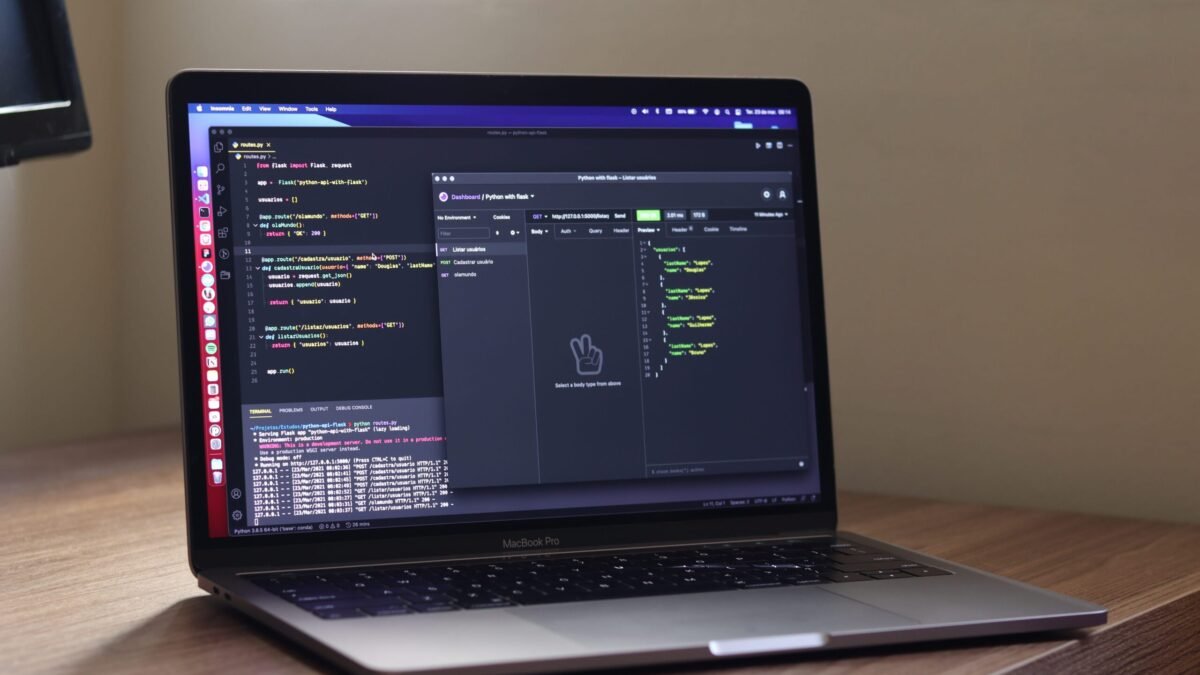
Learning how to use AI in Jupyter notebooks productively changed the way I work with data. I used to spend half my morning Googling pandas syntax and debugging cryptic stack traces. Now an AI assistant sits right inside my notebook, explains errors in plain English, and drafts boilerplate code while I focus on the actual analysis. The trick is knowing where AI genuinely helps and where it just gets in the way.
I’ve spent the last year testing AI coding assistants inside JupyterLab and VS Code notebooks, and honestly, the productivity jump is real — if you set things up right. Here’s the workflow that actually works.
How to Use AI in Jupyter Notebooks Productively: My Actual Setup
You’ve got three main ways to bring AI into a notebook environment, and they solve different problems:
- AI code completion (Copilot-style): autocomplete for pandas, NumPy, matplotlib. This is the biggest time-saver for boilerplate.
- Chat assistants in the sidebar: ask “why is this merge producing NaNs?” and get an explanation with a fix.
- Notebook-native AI cells: some setups let you write a prompt in a cell and get code back, which you can then edit and run like normal.
In VS Code, the Jupyter extension plus an AI assistant gives you all three. In classic JupyterLab, extensions like jupyter-ai add a chat panel. Pick whichever environment you already live in — switching tools to chase AI features usually costs more time than it saves.
Where AI Actually Saves You Time
1. Boilerplate and data wrangling
This is the easy win. Loading CSVs, parsing dates, pivoting dataframes, writing groupby aggregations — AI nails this stuff because it’s been trained on millions of Stack Overflow answers. Instead of typing out a ten-line reshaping operation, describe what you want: “pivot this so each row is a customer and columns are monthly totals.” You’ll still want to check the output, but you just skipped five minutes of syntax fiddling.
2. Debugging errors
Paste a traceback into the chat and ask what’s wrong. Nine times out of ten it spots the issue faster than you would — a mismatched dtype, a forgotten reset_index, a column name with a sneaky trailing space. I’ve had it catch bugs in seconds that would have eaten my afternoon.
3. Learning unfamiliar libraries
Need to make a Plotly dashboard but you’ve only ever used matplotlib? Ask the assistant to translate your matplotlib code to Plotly, then read the result to learn the patterns. It’s like pair programming with someone who has read every library’s docs.
Where You Should Stay in the Driver’s Seat
AI is weaker at the parts of notebook work that require judgment. It will happily write you a statistical test without checking whether your data meets the assumptions. It’ll suggest dropping all rows with missing values when that would silently bias your analysis. And it has no idea what your business question actually is.
My rule: let AI write the how, but you own the what and the why. Every AI-generated cell gets a quick sanity check before I trust its output — especially anything involving statistics, joins, or filtering.
A Few Habits That Keep Things Sane
- Restart and rerun before you trust anything. AI-generated cells sometimes depend on variables from cells you deleted. A clean kernel run catches that.
- Keep prompts specific. “Clean this dataframe” gets you garbage. “Drop rows where revenue is null, convert order_date to datetime, and sort by customer_id” gets you working code.
- Don’t let it write your markdown explanations. The narrative in a notebook is your thinking. If AI writes that too, you’ve outsourced the one part that matters.
- Watch out for hallucinated functions. AI occasionally invents pandas methods that don’t exist. If a function looks unfamiliar, check the Jupyter and pandas docs before running it in production.
Common Mistakes That Kill the Productivity Gains
I’ve watched plenty of people adopt AI in notebooks and end up slower than before. Here’s what goes wrong:
- Accepting code without running it. AI-generated code that “looks right” but was never executed is a landmine. Always run it, ideally on a small sample first.
- Letting the assistant reorganize your whole notebook. Some tools offer to “clean up” or “optimize” everything at once. Don’t. You’ll lose track of what changed and why, and debugging becomes a nightmare.
- Using AI as a substitute for learning pandas. If you can’t read the code it generates, you can’t verify it. AI should accelerate your learning, not replace it — the day it confidently invents a method is the day that bites you.
- Ignoring data privacy. If you’re working with customer data, medical records, or anything sensitive, check where your AI assistant sends code snippets. Some tools transmit context to external servers. For sensitive work, look into locally-run assistants or enterprise tiers with data guarantees.
The pattern behind all of these: AI is a multiplier on your existing competence, not a replacement for it. The better you understand your data and your tools, the more value you squeeze out of the assistant.
The Takeaway
Used well, AI in Jupyter notebooks is like a fast junior analyst who never sleeps: great at boilerplate, decent at debugging, and absolutely not someone you hand your judgment to. Set up one assistant in the environment you already use, lean on it for the repetitive stuff, and keep your critical thinking switched on for everything else. If you’re also curious about how AI handles code in other contexts, check out our guide on making AI-written code read naturally and our look at whether AI can spot patterns in data that humans miss.



2 Comments