
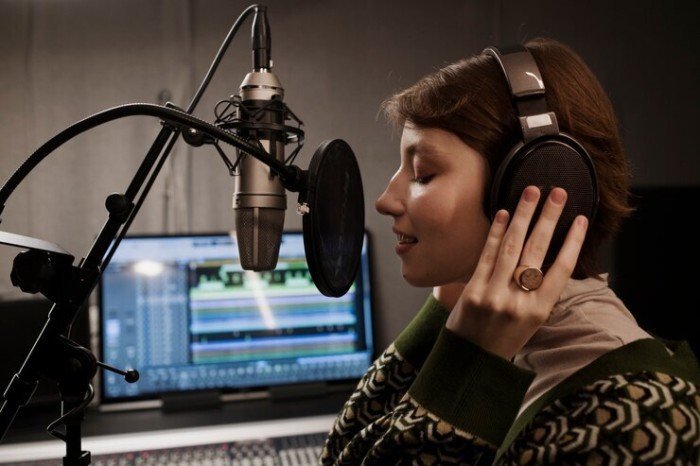
There’s nothing that screams “AI video” like a voiceover that finishes its sentence three seconds before the scene changes. Learning how to sync AI voiceovers with video timing is the difference between content that feels professional and content that feels generated.
How to Sync AI Voiceovers with Video Timing
Human narrators watch the picture and pace themselves. AI voice tools generate audio from text with no awareness of your timeline — you get a fixed-duration clip and have to fit the video to it, or regenerate until it fits. The fundamental trick is flipping the workflow: time the script first, then generate to fit.
The per-scene workflow (most reliable)
- Lock your edit timing first. Cut the visuals, set scene durations, and note exactly how many seconds each narration block gets.
- Write to time. English narration runs ~800–900 characters per minute (roughly 150 words). For a 12-second scene, write ~160–180 characters. This math is the whole game.
- Generate per scene. One generation per narration block, not one long file. This isolates timing problems — if scene 4 is 2 seconds long, you only regenerate scene 4.
- Micro-adjust with speed. Most editors let you time-stretch audio ±10% without audible artifacts. Use this for final nudges, not major fixes.
- Leave breathing room. Generate with a beat of silence at the start/end of each clip. Tight-to-the-frame narration feels rushed; air feels confident.
Tools that help
- ElevenLabs — per-generation stability settings affect pacing; lower stability = more natural variation but less predictable timing.
- Descript — edit the transcript and the timeline together; its Overdub/regenerate features keep timing visible.
- CapCut / Premiere auto-sync — auto-caption tools show you exactly where words land, making manual nudging easy.
- HeyGen / Synthesia — avatar platforms auto-sync lip movement to the generated voice, solving the visual sync problem for talking heads.
Fixing common sync problems
Voiceover too long for the scene? Tighten the script — cut filler words first. As a last resort, speed up to 1.1x. Too short? Add a pause or a transitional phrase; slowing below 0.95x sounds drunk. Emphasis landing wrong? Add commas and line breaks in the script — TTS models treat punctuation as direction. Weird pauses mid-sentence? That’s usually the model interpreting a line break as a paragraph break; keep sentences flowing.
Lip-sync for avatars and dubbing
If you’re syncing to visible mouths, dedicated lip-sync tools (HeyGen’s, Runway’s lip-sync, or open-source Wav2Lip) reshape mouth movements to match audio. They work best on front-facing, well-lit faces. For AI dubbing into other languages, generate the translated voiceover first, then lip-sync the video to it — not the reverse.
Advanced timing techniques
Once the basics are solid, these techniques solve the remaining 20% of sync headaches. Phoneme-level editing: some TTS tools let you adjust individual word timing — use it for critical sync points like lip movements or on-screen text reveals. Breath insertion: AI voiceovers often lack natural breaths; adding subtle breath sounds at phrase boundaries dramatically improves realism and gives you timing anchor points. Room tone beds: lay consistent room tone under all voiceover segments — it glues disparate generations together and masks tiny timing seams.
Music-driven pacing is the secret weapon: cut your voiceover to a music bed’s rhythm rather than dead silence. The music provides a timing grid that makes minor sync imperfections inaudible — viewers perceive the voice as “in time” with the music even when it’s slightly off the visuals. This is why so much professional content feels perfectly synced: the music is doing hidden work.
Tools for precision sync work
For frame-accurate work, Adobe Premiere Pro’s text-based editing and Essential Sound panel give the finest control, while Descript’s timeline-transcript linking makes sync issues visually obvious. Whatever editor you use, the workflow is the same: get it 90% right with script timing math, then nudge the last 10% by ear. Your ears are the final judge — if it sounds right, it is right, regardless of what the waveforms show.
The 10-minute sync audit
Before exporting any AI-voiced video, run this audit — it catches 95% of sync problems. Watch once at normal speed with eyes closed: does the pacing feel natural? Mark any rushed or dragging sections. Watch once watching only the visuals: do scene changes land on phrase boundaries? Check three random spots at the waveform level: is there breathing room around narration? Listen on phone speakers: sync issues hide in good headphones and reveal themselves on tiny speakers. Show one person: fresh ears catch what yours miss after hours of editing.
Ten minutes, five checks, professional results. The most common find: the last 10% of the video is worse-synced than the first 90% — fatigue makes editors sloppy at the finish line. Audit the ending as carefully as the opening; audiences remember endings.
Practical takeaway
- Time the script before generating: ~150 words per minute of narration.
- Generate per scene, not per video — isolates timing fixes.
- Use ±10% speed adjustment for final nudges only.
- Punctuation is direction: commas and breaks control pacing and emphasis.
Keep exploring
If you found this useful, these related guides go deeper:



1 Comment