Best AI Photo Editors 2026: Tested
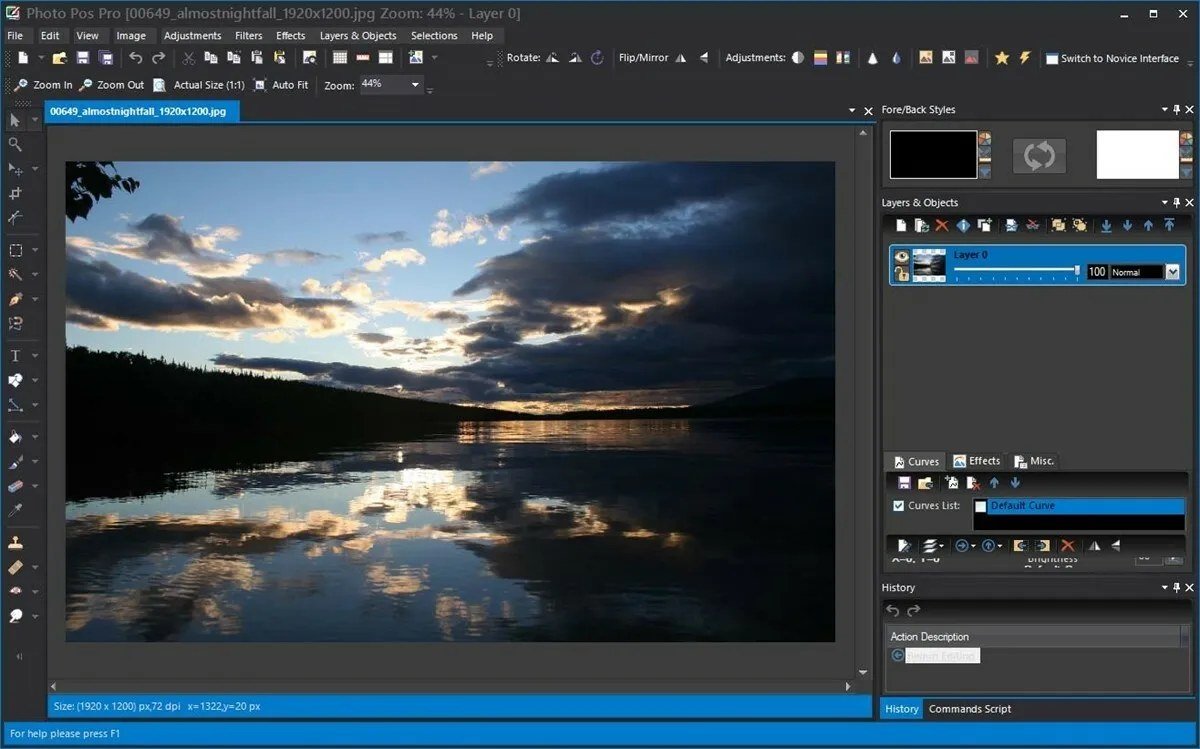
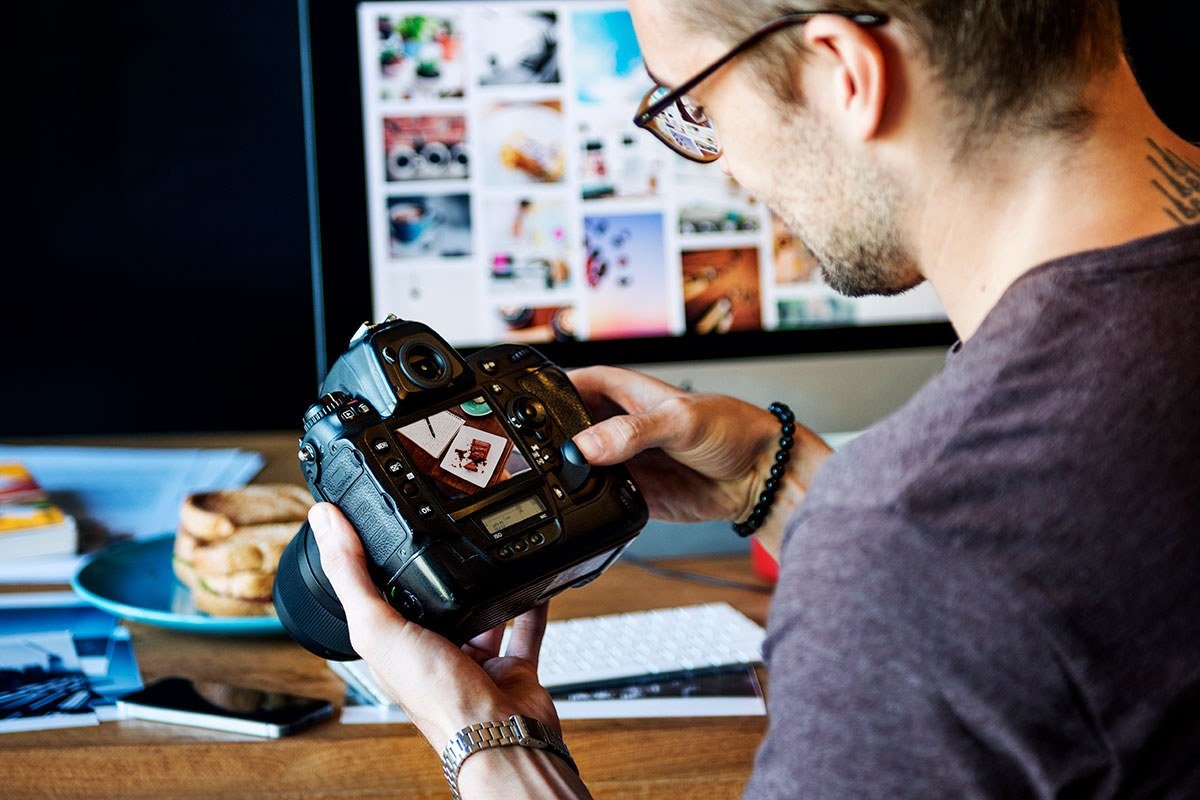
The best AI photo editors 2026 has produced have erased the line between amateur and professional. Remove tourists from a landmark shot with one tap, expand a cropped photo’s background seamlessly, swap a gray sky for sunset, or relight a portrait — edits that once took Photoshop expertise now take seconds.
We tested the leading AI photo editors on real photos: portraits, landscapes, product shots, and old damaged prints. Here are the ones worth your time.
Quick Comparison
| Editor | Best For | Free Tier | Starting Price |
|---|---|---|---|
| Adobe Photoshop (Firefly) | Best professional editor | Trial | $22.99/mo |
| Luminar Neo | One-click enhancements | No (trial) | $14.95/mo |
| Canva | Casual editing + design | Yes | $15/mo |
| Pixlr | Free browser editing | Yes | $7.99/mo |
| Remini | Photo restoration + enhancement | Limited | $9.99/mo |
| Topaz Photo AI | Upscaling and denoising | No (trial) | $199 once |
| Snapseed | Free mobile editing | Yes | Free |
| Fotor | Quick AI edits online | Yes | $8.99/mo |
1. Adobe Photoshop with Firefly — Best Professional AI Photo Editor
Photoshop’s Generative Fill remains the gold standard: select anything — a person, a building, an empty patch of sky — and Firefly replaces, removes, or extends it with uncanny realism. Generative Expand rebuilds cropped photos beyond their borders. For professionals, nothing else offers this combination of precision and AI power. Because Firefly trains on licensed content, it’s also the safest choice for commercial work. See adobe.com.
Best for: photographers and designers who need full control.
Honest con: subscription cost; real learning curve.
2. Luminar Neo — Best One-Click Enhancements
Luminar Neo’s AI tools feel like magic: sky replacement that relights the whole scene, portrait relighting, dust removal, and atmosphere effects — all with sliders instead of selections. Hobbyist photographers get dramatic results without touching Photoshop. In our tests, a flat midday landscape became a golden-hour shot in about 90 seconds.
Best for: enthusiasts who want stunning results fast.
Honest con: can look over-processed if you push sliders too far.
3. Canva — Best for Casual Editing
Canva’s Magic Edit, Background Remover, and Magic Eraser handle 90% of what casual users need: clean product photos, social posts, thumbnails. The workflow is unbeatable — edit the photo and drop it straight into your design. The free tier covers background removal with limits.
Best for: creators, marketers, and casual users.
Honest con: not a replacement for serious photo retouching.
4. Pixlr — Best Free Browser Editor
Pixlr packs AI background removal, object removal, and generative fill into a free browser app — no install, no account needed for basics. It’s the quickest path from “photo with a problem” to “photo fixed” on a borrowed computer.
Best for: quick free edits anywhere.
Honest con: ads on free tier; less refined than paid tools.
5. Remini — Best for Restoration and Enhancement
Remini specializes in rescuing bad photos: blurry shots sharpened, old damaged prints restored, low-res images enhanced into crisp portraits. Its face-enhancement is startling — we’ve seen unusable old family photos become frame-worthy. If your goal is saving memories rather than creating art, start here. See our Remini review for before-and-after tests.
Best for: restoring old or low-quality photos.
Honest con: subscription needed for full quality; faces can look slightly “AI.”
6. Topaz Photo AI — Best Upscaling and Denoising
Topaz does a few things better than anyone: enlarging images without mushiness, removing noise from high-ISO shots, and sharpening missed focus. It’s a one-time purchase, not a subscription, and it slots into Lightroom/Photoshop workflows. Wildlife and sports photographers swear by it. For the technique, see how to use AI image upscalers for better photos.
Best for: photographers maximizing image quality.
Honest con: $199 upfront; it’s an enhancer, not a full editor.
7. Snapseed — Best Free Mobile Editor
Google’s Snapseed remains the best free phone editor: selective adjustments, healing, HDR, and perspective tools with a genuinely good interface. It lacks generative AI features, but for classic editing on the go, it’s still unbeaten at the price of free. Our guide on how to edit photos with AI on your phone covers mobile workflows in depth.
Best for: mobile editing at zero cost.
Honest con: no generative fill or AI object removal.
8. Fotor — Best Quick Online Edits
Fotor’s browser-based AI handles background removal, object erasing, photo enhancement, and headshot generation in a simple interface. It’s the middle ground between Pixlr’s bare-bones free tools and Canva’s design platform.
Best for: fast online edits with AI help.
Honest con: best features sit behind the paywall.
The Editing Workflow Pros Actually Use
Tools don’t make photos good; process does. Here’s the order of operations professional retouchers follow — whether they’re using Photoshop or a phone app. Do steps in this order and you’ll avoid the most common amateur mistake: creative edits on top of uncorrected fundamentals.
Step 1: Correct before you create
Exposure, white balance, and lens corrections first — always. AI enhancements applied to a badly exposed photo just make a sharper bad photo. Get the fundamentals right and every subsequent edit works better. This takes 60 seconds and matters more than any AI feature.
Step 2: Clean up distractions
Sensor dust, stray trash cans, photobombers, exit signs — remove them now with generative fill or healing tools. Zoom to 100% and scan the edges of the frame; distractions hide in corners. The goal isn’t perfection, it’s removing everything that pulls the eye from the subject.
Step 3: Enhance selectively
Now the fun stuff: sky enhancements, portrait relighting, atmosphere. The key word is selectively — apply effects where they serve the photo’s story, not globally because the slider exists. Pros use masks and local adjustments; the Luminar-style global slider is a starting point, not a finish.
Step 4: Final polish and export
Subtle sharpening (output sharpening differs for screen vs. print), a final crop check, and export at the right resolution. For social: 2048px on the long edge, sRGB, ~85% JPEG quality. For print: full resolution, Adobe RGB or the lab’s preferred profile.
When AI Editing Goes Wrong
AI editors fail in predictable ways. Knowing the failure modes saves you from publishing embarrassing results.
- Plastic skin: aggressive face enhancement removes all texture. Dial it back until pores are visible — real skin has texture, and viewers read its absence as fake.
- Impossible physics: generative fill sometimes adds shadows pointing the wrong way or reflections that don’t match. Zoom in on AI-generated regions before publishing.
- Overcooked HDR look: sky replacement plus structure sliders maxed out produces the crunchy, glowing look that screams “edited.” Restraint reads as professional.
- Wrong details in restoration: Remini-style enhancers occasionally invent facial features on blurry faces — teeth, glasses, expressions that weren’t there. For archival or journalistic photos, disclose AI restoration and prefer conservative settings.
Frequently Asked Questions
What is the best AI photo editor in 2026?
Adobe Photoshop with Firefly is the best professional AI photo editor for its unmatched generative fill and commercial safety. For one-click enhancements, Luminar Neo wins; for free casual editing, Canva or Pixlr.
Can AI remove people from photos?
Yes — Photoshop’s Generative Fill, Canva’s Magic Eraser, and Pixlr’s object remover all delete unwanted people or objects and realistically reconstruct the background behind them.
What is the best free AI photo editor?
Pixlr offers the most AI features free in a browser, Canva’s free tier covers background removal and magic edit with limits, and Snapseed is the best completely free mobile editor.
Can AI restore old damaged photos?
Yes. Remini specializes in restoring old, blurry, or damaged photos — sharpening faces, fixing damage, and enhancing resolution. Results on family photos are often dramatic.
What’s the difference between AI editing and filters?
Filters apply the same preset adjustments to every photo. AI editing understands image content — it can remove specific objects, relight faces, or reconstruct missing background, making decisions per-image rather than applying blanket changes. That’s why AI results look dramatically more natural than even the best filter packs.
The Bottom Line
The best AI photo editors in 2026 — Photoshop, Luminar Neo, Canva, and Remini — have made professional-quality editing accessible to everyone. Choose based on your skill level and needs: full control (Photoshop), one-click drama (Luminar), casual speed (Canva), or rescue missions (Remini).