If you’ve ever paused mid-prompt and thought, “wait — is this being used to train the model?” — you’re asking the right question. Gemini, like most AI assistants, can use your conversations to improve future versions of the model. The good news: Google gives you a way to opt out. Here’s exactly how to stop Gemini from training on your data, step by step.
A quick reality check first. Turning off data collection doesn’t make Gemini forget how to help you — it just means your chats won’t be fed back into model training. I’ve walked several friends through these settings, and it takes about two minutes.
Step 1: Turn Off “Gemini Apps Activity”
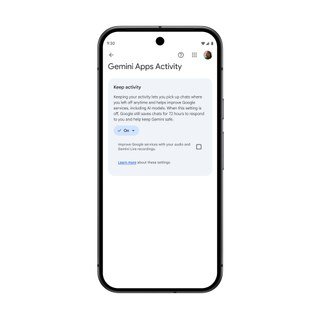
This is the big switch. “Gemini Apps Activity” is the setting that saves your chats to your Google account and makes them eligible for training. Here’s how to disable it:
- Go to gemini.google.com and click the gear/settings icon (or open the Gemini app and tap your profile picture → Gemini Apps Activity).
- You’ll see a toggle for Gemini Apps Activity. Turn it off.
- Google will ask you to confirm and explain that future chats won’t be saved to your account. Confirm.
- Optionally, choose to also delete past activity — there’s a “Delete” option covering time ranges (last hour, last day, all time).
On mobile, the path is: Gemini app → profile picture → Settings → Data & privacy → Gemini Apps Activity → toggle off.
Step 2: Understand What “Off” Actually Does
When Gemini Apps Activity is off, your conversations are still processed to answer you in real time — that’s unavoidable — but they’re not saved to your activity history, and Google says they won’t be used for training. Note the honest fine print: Google may retain chats for up to 72 hours for safety and abuse-prevention processing even with activity off. That’s standard across the industry, not a Gemini quirk.
Step 3: Check Connected Apps and Extensions
Gemini connects to Gmail, Docs, Drive, and other Google Workspace apps if you’ve enabled extensions. Data flowing through those connections has its own sharing rules. If you’re serious about limiting data use, review which extensions are enabled in Gemini settings and disable anything you don’t actively use. You can also manage this at Google’s My Activity page, which shows what’s been recorded across all Google services.
Step 4: Use a Fresh Chat for Sensitive Topics
Even with activity off, treat Gemini like a conversation in someone else’s office: assume it could be overheard. For anything genuinely sensitive — financial details, legal matters, health specifics — the safest prompt is no prompt at all. I have a personal rule: nothing goes into an AI chat that I wouldn’t email to a stranger. Read more about what you should never tell an AI chatbot for the full list.
What About the “Help Improve Gemini” Setting?
Google occasionally surfaces explicit feedback prompts — the thumbs up/down on responses, and options to share conversation snippets to improve the product. These are separate from activity saving and usually opt-in per action. If you rate a response, you’re voluntarily contributing that snippet. Fine when it’s a generic question; skip it when the chat touched anything personal.
Alternatives If Privacy Is Your Top Priority
If the whole setup still feels like too much data sharing, you’ve got options. Running a model like DeepSeek locally means your data never leaves your machine — no cloud, no activity log, no training pipeline. It’s more setup work, but for privacy-sensitive use it’s the gold standard.
How to Stop Gemini From Training on Your Data: Mistakes to Avoid
A few traps I’ve seen people fall into:
- Turning it off but not deleting history: disabling Gemini Apps Activity stops future collection. Your past chats are still sitting there until you delete them separately. Do both if you’re doing a privacy cleanup.
- Forgetting the mobile app: settings sometimes differ between the web version and the app. Check both — especially if you use Gemini on your phone more than your laptop.
- Assuming “off” means “zero retention”: as noted, short-term retention for safety processing still applies. If your threat model can’t tolerate even that, a cloud chatbot isn’t the right tool — go local.
- Ignoring Workspace data: if you use Gemini inside Gmail or Docs, those interactions have their own data trails. Review them in your Google account’s activity controls, not just Gemini settings.
How Often Should You Review These Settings?
Google updates features — and occasionally settings — more often than you’d think. I do a 5-minute privacy check quarterly: activity setting still off? Extensions still minimal? Old chats deleted? It takes less time than cleaning out a fridge, and it keeps you in control as the product evolves. Pair it with a broader habit of thinking before you share personal info with any chatbot — settings are the safety net, habits are the real protection.
Quick Recap
To stop Gemini from training on your data: turn off Gemini Apps Activity (desktop or mobile), delete old activity if you want, review Workspace extensions, and keep sensitive topics out of any cloud chatbot. Two minutes of settings work, and you’re in control. For the official word, see Google’s privacy documentation for Gemini.