

This CapCut AI review 2026 focuses on the features that actually matter: we tested CapCut’s AI editing toolkit — auto-captions, script-to-video, background removal, voice enhancement, and the new AI effects — across real projects to see which ones save time and which are gimmicks. CapCut went from a TikTok sidecar to one of the most-used video editors on the planet, and its AI features are a big reason why.
What CapCut’s AI Does in 2026
CapCut is ByteDance’s free video editor (mobile, desktop, and web), and its AI layer now touches nearly every step of editing: generating scripts, creating voiceovers, captioning, cutting silences, removing backgrounds, enhancing audio, and even generating b-roll. Most of it is free — which is frankly astonishing given what competitors charge.
Feature-by-Feature Test Results
1. Auto Captions — excellent
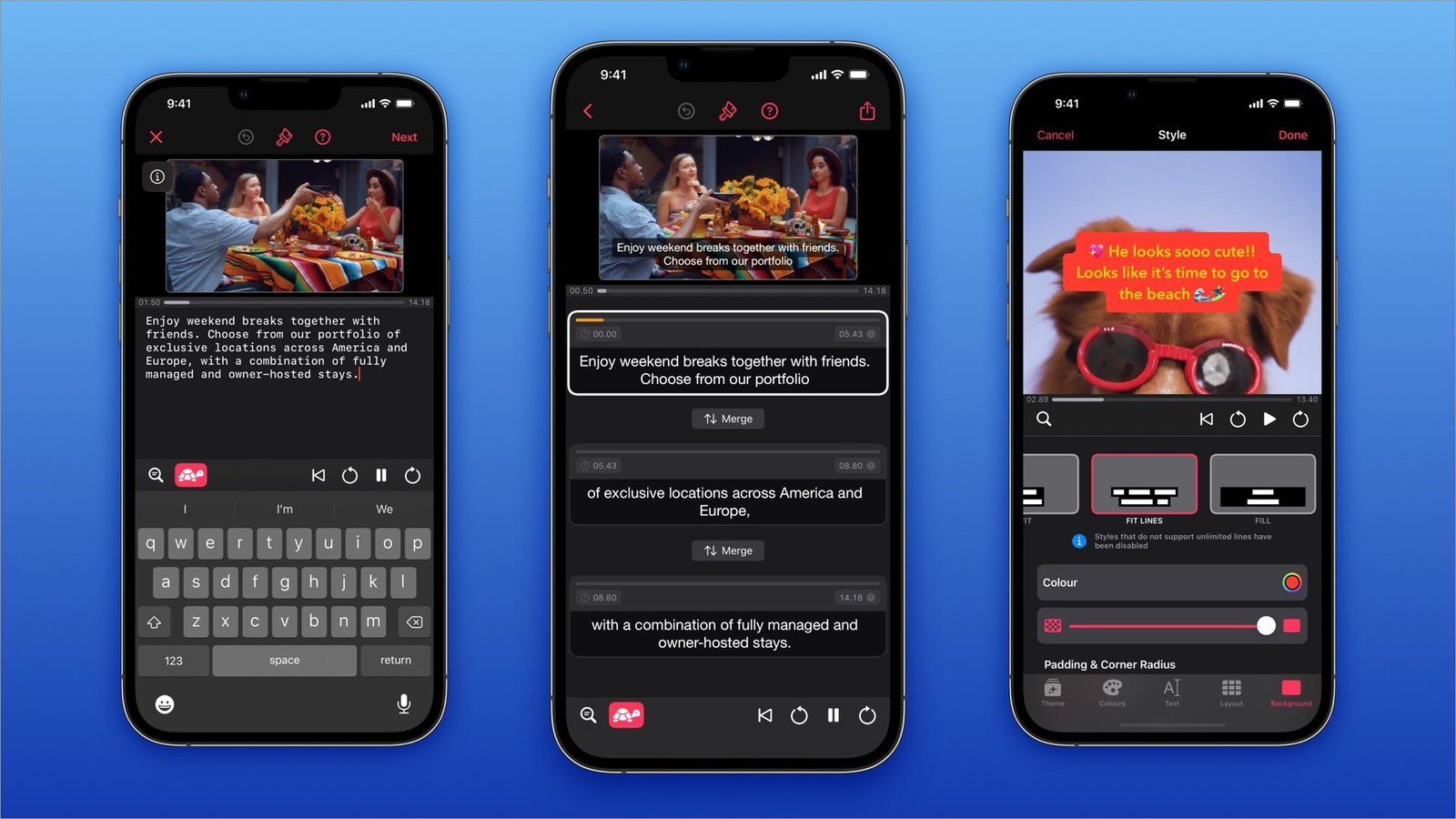
We captioned 10 videos across English, Spanish, and accented English speech. Word accuracy was ~97% on clear audio, dropping to ~90% with heavy background noise — best-in-class for a free tool. The animated caption styles (the bouncy word-by-word TikTok look) apply in one tap. This single feature justifies CapCut for short-form creators.
2. Script to Video — good with supervision
Paste a script; CapCut generates a narrated video with AI voiceover, stock footage, and captions. Our test scripts produced coherent, postable drafts in under 5 minutes. The stock footage matching was hit-or-miss — always review and swap the misses. Think “first draft generator,” not “publish button.”
3. Background Removal — very good
One-tap person cutout without a green screen. Edge quality rivals paid tools for simple backgrounds; complex backgrounds (crowds, similar colors) need the manual mask brush. For talking-head creators, it’s transformative.
4. AI Voice Enhancement — surprisingly strong
The “enhance voice” toggle cleaned up echoey room recordings impressively — not studio quality, but it rescued audio we would have re-recorded. The noise reducer is more aggressive; use it lightly to avoid underwater-voice artifacts.
5. AI Effects and Avatars — mixed
AI-generated effects (style transfers, cartoon looks) are fun but inconsistent. The AI avatar presenter is usable for faceless channels but clearly synthetic next to HeyGen or Synthesia. Fine for drafts and memes, not for client work.
6. Auto Cut / Silence Removal — great for podcasts
Automatically removes silences and filler from talking-head footage. On a 40-minute recording it cut editing time roughly in half. Occasionally clips breath-pauses too aggressively — skim the result.
The Free-vs-Paid Reality
CapCut’s free tier is extraordinarily generous: nearly all AI features work without paying. CapCut Pro (~$8/month or ~$75/year) adds cloud storage, premium effects, higher export quality options, and removes the small watermark on some AI-generated assets. Our take: start free; upgrade only if you hit the asset limits or need the cloud workflow.
CapCut AI vs. Competitors
| Tool | Strength vs. CapCut | Weakness vs. CapCut |
|---|---|---|
| Premiere Pro + AI | Pro color, audio, ecosystem | Expensive, slower for short-form |
| Descript | Text-based editing, better transcription workflow | Costs more, weaker effects |
| DaVinci Resolve | Free pro-grade color and Fusion | Steeper learning curve, weaker AI captions |
| Runway | Generative video far ahead | Narrow focus, credit-based pricing |
For short-form and social video, CapCut’s AI package beats everything at any price — see the wider field in our best AI video editing tools roundup. For long-form cinematic work, the pro tools still win.
Best CapCut AI Features by Creator Type
Different creators should prioritize different tools:
- TikTok/Reels creators: Auto captions + trending templates + background removal. This trio covers 90% of short-form needs.
- YouTubers: Silence removal + AI voice enhancement + script-to-video for b-roll and shorts repurposing.
- Marketers: Script-to-video for ad variations + auto-translate captions for multilingual campaigns.
- Podcasters: Auto captions + silence removal turn a 60-minute recording into clips and a captioned video episode fast.
- Educators: Text-to-speech voiceover + auto captions make lessons accessible with minimal recording.
The pattern: CapCut’s AI is broad rather than deep. Identify your 2–3 highest-leverage features, master those, and ignore the rest — the app adds new effects constantly, and chasing every one is a distraction.
Privacy and the ByteDance Question
CapCut is owned by ByteDance (TikTok’s parent), which raises the same data questions as TikTok. CapCut states that US user data is stored in the US and Singapore, but if you handle sensitive footage — unreleased client work, for instance — consider the desktop version’s offline capabilities and review the privacy policy. For most creators this is a non-issue; for enterprise legal teams, it’s a conversation.
Export Settings That Actually Matter
Most creators export on defaults and leave quality on the table:
- Resolution: Export at the resolution you shot (usually 1080p or 4K). Upscaling 1080p to “4K” in CapCut adds nothing but file size.
- Frame rate: Match your source footage (30fps for most phone video). Mismatched frame rates cause subtle judder.
- Bitrate: For YouTube, use “Higher quality” presets — the platform recompresses anyway, and starting higher preserves detail. For TikTok/Reels, the recommended preset is fine; those platforms crush everything equally.
- Format: MP4/H.264 for universal compatibility. H.265 halves file sizes but can choke older devices.
One more tip: export a master copy at the highest quality before making platform-specific versions. Re-exporting from a compressed file compounds quality loss. When in doubt, 1080p30 H.264 plays everywhere and looks great on every platform that matters.
Pros and Cons
Pros
- Best free AI editing toolkit available — by a wide margin
- Auto captions are best-in-class
- Fast, intuitive, mobile-to-desktop workflow
- Constant updates with genuinely useful AI features
Cons
- ByteDance ownership raises data questions for some users
- AI avatars and effects lag behind specialized tools
- Template-heavy ecosystem can make content look samey
- Occasional aggressive upsells for Pro assets
CapCut AI Review 2026: Final Verdict
CapCut’s AI editing features are the best value in video editing, period. Auto captions alone would justify a paid subscription; that they’re free is remarkable. It won’t replace Premiere for feature films, but for creators, marketers, and small teams producing social video, it’s the obvious choice. Start free, learn the AI toolkit, and only pay if you need Pro’s cloud and asset perks.
Rating: 4.5 out of 5.
CapCut AI Review 2026: FAQ
Is CapCut really free?
Yes — the core editor and nearly all AI features (auto captions, background removal, script-to-video) are free. CapCut Pro (~$8/month) adds cloud storage, premium assets, and higher export options.
How accurate are CapCut’s auto captions?
In our testing, ~97% word accuracy on clear English audio and ~90% with background noise — among the best of any free tool. Always proofread before publishing.
Can CapCut’s AI replace a video editor?
For short-form social content, it handles 80% of the mechanical work (captions, cuts, cleanup). Creative decisions, pacing, and storytelling still need a human.
Is CapCut safe to use given ByteDance ownership?
CapCut states US user data is stored in the US and Singapore. For typical creator use it’s fine; enterprises with strict data policies should review the privacy terms and consider offline desktop workflows.
CapCut vs. Premiere Pro for beginners?
CapCut, without question — it’s free, faster to learn, and its AI features automate the tedious parts. Premiere is for professionals who need its depth.


