Got a model running on your machine? Great — now make it useful. Serving a local LLM as an API endpoint means every tool you own — your code editor, your scripts, your automation — can talk to your private model through a clean HTTP interface, ideally one that mimics OpenAI’s API so existing tools just work. Here’s how to set it up without losing a weekend. This guide covers How to serve a local LLM as an API endpoint — clearly, honestly, and without the fluff.
How to serve a local LLM as an API endpoint: What Actually Works
If you want it working in 10 minutes, use Ollama. Install it, pull a model, and it exposes an API on localhost:11434 automatically:
ollama pull llama3.1
ollama serve   # usually already running
Ollama’s API is close to OpenAI-compatible, and many tools (Continue.dev, LibreChat, n8n) connect to it natively. For a personal setup — one developer, one machine — this is the answer 90% of the time. Point your tool at http://localhost:11434/v1, set the model name, done.
When you need more: llama.cpp server and vLLM
- llama.cpp server (
llama-server): maximum control, runs anywhere, great for odd hardware. More flags to learn, but rock solid. - vLLM: the choice for serving on a real GPU server with multiple users. Its OpenAI-compatible server handles concurrent requests efficiently with continuous batching — this is what you run when the whole team shares one GPU box.
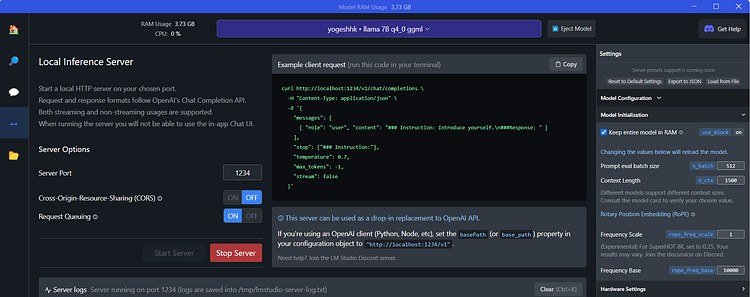
- text-generation-webui / LM Studio: friendlier GUIs with API modes; good middle ground if you want a chat UI and an API from one install.
Making It Actually Usable
A localhost endpoint is step one. To make it real infrastructure:
- Bind carefully. Keep it on localhost unless you know what you’re doing — an open LLM endpoint on your network is a free compute gift to strangers.
- Add a reverse proxy (Caddy or nginx) with auth if teammates need access. API keys, not vibes.
- Monitor VRAM. Concurrent requests multiply memory use. Set max concurrency based on your GPU, not your optimism.
- Keep a fallback. Route to a cloud API when the local server is down or the task needs frontier reasoning. Hybrid setups are the pragmatic default.
This pairs naturally with the cost question — local vs. API cost math tells you whether the hardware is worth it — and with training AI on your business data for private deployments. If you’re automating the server itself, AI for DevOps covers the infrastructure angle.
Connecting Your Favorite Tools
An API endpoint nobody uses is just a space heater. Here’s how to actually plug tools into it. VS Code with Continue.dev: point the config at your Ollama endpoint, and you’ve got a private Copilot alternative — tab completion and chat, zero data leaving your machine. n8n / Make: swap the OpenAI node for an HTTP node hitting your local endpoint for automation workflows that handle sensitive data.
LibreChat or Open WebUI: give yourself (or your team) a ChatGPT-like interface backed by your local model — this is the setup that finally gets non-technical colleagues off public chatbots for internal work. Custom scripts: anything that speaks OpenAI’s API format works with minimal changes; keep a tiny wrapper that falls back to a cloud API when local is unavailable.
The pattern that works best: route by sensitivity. Internal docs, proprietary code, customer data → local endpoint. General knowledge questions, hard reasoning, creative work → frontier cloud API. A simple router (even a few lines in your tool config) gives you the privacy of local with the capability of cloud, and it’s how most serious self-hosters actually operate day to day.
Performance Tuning Basics
Out of the box, local serving works. With an hour of tuning, it flies. Quantization is the biggest lever: a Q5 or Q4 quantized model runs dramatically faster with minimal quality loss for most tasks — the difference between 8 tokens/sec and 40 on the same GPU. Context length costs memory quadratically; don’t set 128k context “just in case” if your tasks need 8k.
GPU layers: on partial-GPU setups, offload as many layers as VRAM allows — every layer on CPU is a speed penalty. Continuous batching (vLLM’s specialty) multiplies throughput under concurrent load; if you’re serving a team, this matters more than raw single-request speed. Speculative decoding can nearly double token rates using a small draft model. Measure before and after each change with a standard prompt — tuning without benchmarks is just superstition with extra steps.
Your next step: install Ollama, pull one model, and point a single tool at localhost:11434. Get one integration working end-to-end before adding auth, proxies, or teams. A working minimal setup beats an ambitious half-finished one every time.
The Takeaway
Start with Ollama’s built-in server for personal use; graduate to vLLM when you’re serving a team. Secure it, monitor VRAM, keep a cloud fallback — and you’ve got private AI infrastructure that answers to nobody’s rate limits but yours.
Docs to bookmark: Ollama’s API documentation and vLLM’s docs.