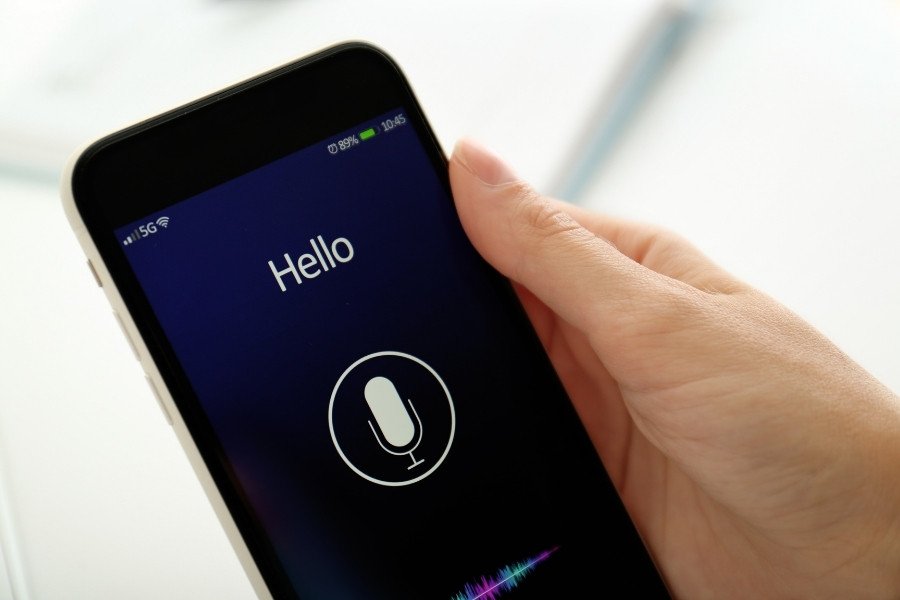
Talking to AI instead of typing changes the whole dynamic — brainstorming on a walk, practicing a language, thinking out loud. How to use Gemini Live voice conversations well (setup, best use cases, and the quirks) turns your phone into a conversational thinking partner. Here’s the complete guide.
How to Use Gemini Live Voice Conversations: Setup
- Open the Gemini app (Android or iPhone)
- Tap the Live / voice button — usually a waveform or microphone icon
- Grant microphone permission if prompted
- Start talking — no wake word needed once live; it’s a continuous conversation
- Interrupt naturally — you can cut in, just like a real conversation
Use headphones in noisy environments — the mic picks up background sound, and Live works best when it hears you clearly.
What Gemini Live Is Great For
- Brainstorming: think out loud while walking — ideas flow differently spoken than typed
- Language practice: “Help me practice Spanish conversation. Correct my mistakes gently.”
- Interview prep: mock interviews with follow-up questions
- Learning on the go: “Explain quantum computing while I walk — keep it conversational.”
- Hands-busy help: cooking, driving (use car audio), exercising — “Talk me through this recipe step by step.”
- Rehearsal: practice presentations, difficult conversations, pitches
Tips for Great Voice Conversations
- Speak naturally: full thoughts, not keywords — Live handles conversational speech well
- Set the mode upfront: “Keep answers short” or “Go deep on this topic” — voice defaults can ramble
- Use it with context: “I’m looking at my spreadsheet — help me understand column D” pairs with Gemini’s spreadsheet help for hands-free data work
- Interrupt freely: don’t wait for it to finish — steer the conversation
- Follow up in text: after a great voice session, ask for a written summary in the chat
Limitations
- No visual context in pure voice mode — it can’t see what you see (use camera mode for that)
- Transcription errors: accents, noise, and homophones cause misunderstandings — correct and move on
- Battery and data: extended Live sessions drain both — wifi + charger for long talks
- Depth limits: great for exploration, weaker for precise technical work — switch to text for code and data
- Availability: tier-dependent features — check what your plan includes
Workspace Pairing
Voice plus Workspace is powerful: dictate emails, brainstorm doc outlines aloud, talk through data. See Gemini inside Gmail and Docs for the text-side workflows that complement voice nicely.
Getting the Most From Gemini Live
Voice conversation is a different skill from typing — adapt accordingly:
- Think aloud: voice suits rambling exploration — brainstorm, talk through problems, rehearse presentations. Don’t try to dictate precise prompts; converse.
- Interrupt freely: it’s designed for natural back-and-forth — cut in, redirect, ask follow-ups mid-stream.
- Use it hands-free: cooking, driving, walking — the scenarios where typing is impossible are where voice shines.
- Practice and rehearse: job interviews, difficult conversations, presentations — “role-play as an interviewer and grill me” is transformative prep.
- Learn by listening: “explain this concept conversationally” — auditory learning during commutes or chores.
The mindset shift: stop treating it as a voice-controlled search box and start treating it as a conversation partner. The value is in the dialogue — the thinking that emerges from talking through something with an intelligent listener.
Voice Mode Limitations (Honest)
- No visual context: it can’t see your screen — describe what you’re looking at.
- Precision tasks suffer: code, data, exact wording — switch to text for precision.
- Background noise: works best in reasonably quiet environments.
- Depth vs. speed: voice favors quick exchanges; deep analysis still belongs in text.
Frequently Asked Questions
Is Gemini Live free?
Check current availability — voice features have rolled out across tiers progressively. Free users typically get access with some limits.
How’s the voice quality?
Natural and conversational — a major leap from robotic assistants. Multiple voice options where supported.
Can it remember voice conversations?
Voice chats appear in your history like text chats — review and continue them anytime.
Voice Practice Routines
- Daily: 5-minute voice journal — “help me reflect on today” while cooking dinner.
- Weekly: interview rehearsal — “grill me on [topic] like a tough interviewer.”
- As needed: difficult conversation prep — role-play the hard talk before having it.
Voice AI rewards routine — the users who benefit most build it into daily rhythms, not occasional experiments.
Environment tip: use earbuds with a good mic — audio quality in both directions dramatically affects the experience. A $30 earbud upgrade transforms voice AI from frustrating to delightful.
Try it once: the next time you’re cooking, commuting, or walking, start a voice conversation instead of reaching for your phone screen. One session usually converts skeptics — the naturalness surprises everyone.
The Takeaway
Gemini Live = open the app, tap voice, talk naturally, interrupt freely. Best for brainstorming, language practice, learning on the go, and hands-busy help. Set brevity expectations upfront, follow up in text for anything important, and keep the charger handy. It’s the most natural way to use AI — try a walking brainstorm at gemini.google.com (app for the full Live experience).