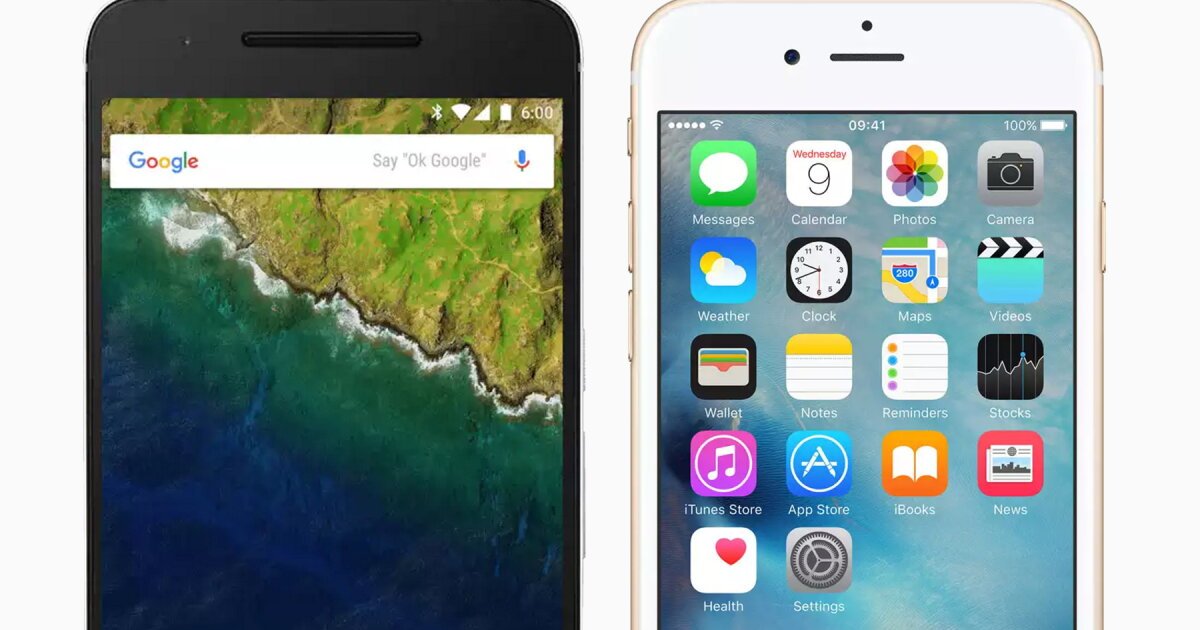
Gemini is Google’s AI, so you’d think it works the same everywhere. It doesn’t. How to use Gemini on Android vs iPhone is one of those questions where the answer is “technically both, practically very different.” I use a Pixel and an iPhone side by side, and the Android experience is in a different league — for reasons that have nothing to do with AI quality and everything to do with operating system access.
Here’s the full breakdown of what each platform can and can’t do.
Gemini on Android: The Home-Field Advantage
On Android, Gemini isn’t just an app — it’s woven into the operating system. Download the Gemini app (or it may already be there), set it as your default assistant, and:
- Hold the power button or say “Hey Google” to summon Gemini anywhere, over any app.
- Circle to Search: circle anything on your screen — a photo, text, a product — and Gemini explains or searches it instantly. This is genuinely magical the first few times.
- Deep app integration: “Add milk to my shopping list,” “Navigate home,” “Set a timer” — Gemini controls your phone’s actual functions.
- Gemini Live: full voice conversations with screen sharing — show it what you’re looking at and talk through it.
- Extensions: connect Gmail, Calendar, Maps, YouTube, and more. “When’s my next meeting and how long will it take to get there?” Just works.
On Android, Gemini replaces Google Assistant as the default helper, and it’s better in almost every way. The integration is the product.
Gemini on iPhone: A Good App in a Walled Garden
On iPhone, Gemini lives inside the Google app or the standalone Gemini app. It’s a fine chatbot — the AI itself is identical — but Apple doesn’t let it be the system assistant. That means:
- No replacing Siri. The side button summons Siri, period. You open the Gemini app manually.
- No system control. Gemini can’t toggle your settings, set iOS alarms, or interact with Apple apps the way it can on Android.
- Limited extensions. Gmail and Google Maps integrations work, but Apple Calendar, Reminders, and Messages are off-limits.
- Gemini Live works — voice conversations are fully available, and they’re great.
- Camera and screen features work within the app, just not system-wide.
Is it still worth using on iPhone? Absolutely — as a chatbot, it’s the same excellent AI. But you’re getting maybe 60% of the Android experience. iPhone users should also check our guides on the best AI assistant for iPhone and the best AI assistant for Android for the full picture.
How to Use Gemini on Android vs iPhone: Setup
Android setup:
- Install or update the Google / Gemini app from the Play Store.
- Open it and opt in to Gemini as your assistant.
- Enable “Hey Google” voice detection in settings.
- Connect extensions: Gmail, Calendar, Maps, YouTube, Spotify.
iPhone setup:
- Download the Gemini app from the App Store (or use it inside the Google app).
- Sign in with your Google account.
- Add the Gemini widget to your home screen for quick access.
- Enable microphone and camera permissions for voice and visual features.
For iPhone-specific walkthrough, see how to access Gemini on iPhone.
The Feature Gap, Honestly
| Feature | Android | iPhone |
- Default assistant replacement: Android yes, iPhone no
- Circle to Search: Android yes, iPhone no
- System controls (timers, settings): Android yes, iPhone no
- Gemini Live voice: both yes
- Camera/visual Q&A: both yes (better integrated on Android)
- Gmail/Maps extensions: both yes
- Core chatbot quality: identical
Which Is Better?
For the full Gemini experience, Android wins and it’s not close. Google built Gemini as a system-level assistant, and Android is where that vision actually exists. On iPhone, Gemini is an excellent app trapped in a sandbox — great AI, limited reach.
That said: if you’re an iPhone user, don’t switch phones over this. The core conversational AI — the thing you’ll use 80% of the time — is identical. And Siri has improved too. But if you’re choosing a new phone and AI assistance matters to you, this is a genuine point in Android’s column.
Google’s DeepMind Gemini page covers the underlying model capabilities that power both versions.
How to Use Gemini on Android vs iPhone: Privacy Considerations
One angle worth considering: privacy differs by platform too. On Android, Gemini’s deep integration means more of your activity flows through Google’s systems — app usage, location via Maps, email via Gmail. It’s convenient because it’s integrated, and that integration has privacy implications. Google provides activity controls and auto-delete options; I’d suggest every Android Gemini user spend ten minutes configuring them.
On iPhone, the sandbox is actually a privacy advantage — Gemini simply can’t see as much. Less integration means less data sharing by construction. If you’re privacy-conscious but want Gemini’s AI, the iPhone’s limitations become features.
Either way, the fundamentals apply: review what’s saved in your Google activity controls, set auto-delete for activity history, and don’t share sensitive personal data with any chatbot unnecessarily. The platform differences are real, but your own habits matter more than either OS default.
The Takeaway
How to use Gemini on Android vs iPhone: on Android, set it as your default assistant and let it run your phone. On iPhone, install the app, add the widget, and enjoy a top-tier chatbot with some walls around it. Same brain, very different bodies — and now you know exactly what you’re getting on each.