
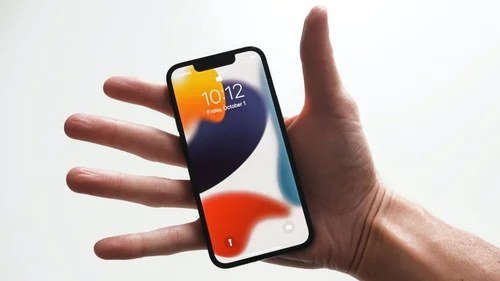
iPhone users get Gemini a little differently than Android folks — no system-level replacement for Siri (thanks, Apple), but several solid access paths. How to access Gemini on iPhone in 2026: the app, the Google app, the web, and the workarounds. Here’s every method, ranked by usefulness.
How to Access Gemini on iPhone: The Methods
1. The Gemini app (best option)
Google offers a standalone Gemini app for iOS — download from the App Store, sign in with your Google account. This is the full experience: chat, voice (Gemini Live), image upload, image generation. If you do one thing, do this.
2. Inside the Google app
The main Google app has a Gemini tab — convenient if you already live in the Google app for search. Slightly less full-featured than standalone, but zero new downloads.
3. Mobile web (gemini.google.com)
Works fine in Safari — add to Home Screen for an app-like icon. Good fallback if you don’t want another app installed.
4. Siri Shortcuts workaround
Create a Siri Shortcut that opens Gemini with voice input — the closest iPhone gets to “Hey Siri, ask Gemini.” Not native integration, but functional for quick queries.
iPhone-Specific Tips
- Gemini Live voice: the conversational voice mode works great on iPhone — Gemini Live is arguably better experienced on mobile than desktop
- Camera upload: snap and ask — menus, documents, plants, error messages
- Widgets: add the Gemini/Google widget for one-tap access
- Subscription management: manage Google AI plans via your Google account (web), not App Store subscriptions — cleaner billing
Limitations on iOS
- No default-assistant replacement: Apple doesn’t allow replacing Siri system-wide — Gemini can’t be your lock-screen/long-press assistant
- Background restrictions: iOS aggressively manages background apps; long Gemini Live sessions may interrupt
- Feature lag: new features sometimes hit Android first
None of these are dealbreakers — they’re just the Apple tax on non-Siri assistants.
Troubleshooting
- App not in your region’s App Store? Use the Google app or mobile web instead
- Prompts refused? Gemini’s refusal behavior is the same across platforms — it’s not an iPhone issue
- Context questions: how Gemini handles context applies equally on mobile
- Long documents on mobile: Gemini’s 2M context works on iPhone, but reviewing huge outputs is nicer on desktop
Getting Gemini on Your iPhone: All the Ways
iPhone users have several paths to Gemini — pick what fits your workflow:
- The Google app: download Google from the App Store → tap the Gemini tab. The fastest route — no separate app needed, and you probably have it installed already.
- Gemini web app: visit the Gemini web app in Safari → add to Home Screen for an app-like icon. Full functionality, no download.
- Standalone Gemini app: check the App Store for Google’s dedicated Gemini app (availability varies by region) — the most native experience where offered.
- Google Assistant replacement: in some regions, Gemini can replace the default assistant — say “Hey Google” and get Gemini instead.
Sign in with your Google account and your conversations sync across iPhone, desktop, and any other device. Start a question on your phone during the commute; refine it on your laptop at your desk.
iPhone-Specific Tips
- Camera integration: snap photos of documents, menus, signs, or problems — visual questions are the iPhone’s superpower.
- Voice input: the microphone button handles dictated questions well — great for hands-free use.
- Share sheet: share web pages, text, or images directly to the Google app from Safari and other apps.
- Widgets: add a Google/Gemini widget to your home screen for one-tap access.
- Shortcuts app: build Siri Shortcuts that send prompts to Gemini — automation for your most common queries.
Frequently Asked Questions
Is Gemini free on iPhone?
Yes — the same free tier as everywhere else, tied to your Google account. Paid upgrades (Google AI Pro) apply across all devices.
Can it replace Siri?
Partially — Gemini handles knowledge and creative tasks far better, but deep iOS system integration (device controls, etc.) remains Siri’s domain. They complement rather than replace.
Does it work with Apple Intelligence?
They coexist — use each for its strengths. Check current iOS versions for integration specifics, as this evolves.
iPhone Setup Checklist
- ☐ Google app installed and updated
- ☐ Signed in with your primary Google account
- ☐ Voice input tested (microphone permission granted)
- ☐ Camera access enabled (for visual questions)
- ☐ Home-screen widget added (optional, recommended)
Five minutes of setup, then Gemini is always one tap away.
Siri Shortcuts for Power Users
Build a Shortcut that sends your voice input to Gemini — “Hey Siri, ask Gemini” becomes your always-available AI. Combine with automations: morning briefing, commute catch-up, bedtime summaries. The iPhone + Gemini combo rewards automation tinkerers.
The Takeaway
On iPhone, get the standalone Gemini app for the best experience — full chat, voice, camera, and image generation with your Google account. The Google app and mobile web are fine backups; Siri Shortcuts bridge the voice gap. You won’t get Android-level system integration, but for actual AI tasks the iPhone experience is excellent. Download from the App Store and start at gemini.google.com for the web version.




1 Comment