Want the latest AI app before it hits your region’s Play Store? Tempted by a “pro unlocked” APK from a random site? Searching “how to install AI apps safely APK” means you’re asking the right question: knowing when the Play Store is enough, when APKs make sense, and how to tell a safe APK from malware is essential Android literacy in 2026. AI apps are now the #1 lure for mobile malware, precisely because everyone wants them.

Play Store vs APK: What’s the Actual Difference?
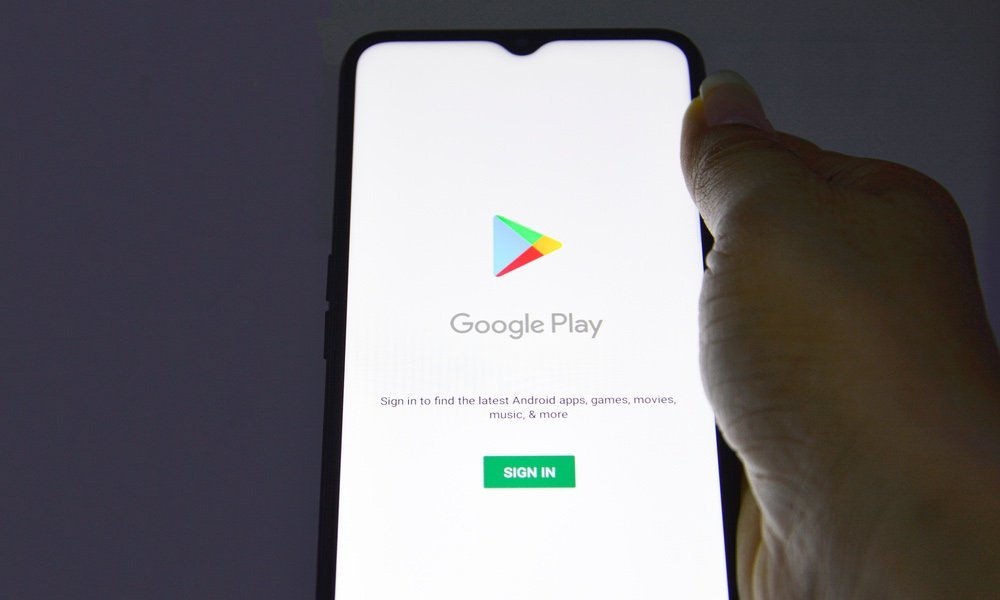
- Play Store install: Google hosts the app, scans it with Play Protect, verifies the developer’s identity, handles updates automatically, and can remotely remove malware. It’s a walled garden with a security guard.
- APK install (sideloading): you download the app’s installation file directly and install it yourself. No Google scanning, no automatic updates, no safety net — you are the security guard.
Here’s the key insight most guides bury: for 95% of AI apps, the Play Store is the right answer. Every major AI app — ChatGPT, Gemini, Copilot, Perplexity, Claude — is on the Google Play Store, free, and updated automatically. Our best AI apps for Android roundup is entirely Play Store apps for exactly this reason.
When APKs Actually Make Sense
Legitimate reasons to sideload exist:
- Regional unavailability: the app isn’t published in your country yet.
- Beta versions: testing pre-release builds from the developer’s official site.
- Older devices: your phone can’t run the latest Play Store version, but an older APK works.
- Open-source apps: many FOSS AI apps (like local LLM clients) distribute via GitHub or F-Droid rather than the Play Store.
Illegitimate reasons — “free premium,” “modded,” “cracked” — are where malware lives. If an APK promises paid features for free, assume it’s compromised until proven otherwise. For the full technical walkthrough, see how to sideload AI apps on Android.
How to Install From the Play Store Safely
Even the Play Store needs street smarts:
- Check the developer name. The real ChatGPT app is by OpenAI, not “OpenAI Tools Pro LLC.” Scammers clone popular AI apps with near-identical names and icons.
- Check download counts and reviews. The real app has millions of downloads. A clone has 5,000 and suspiciously perfect 5-star reviews posted the same week.
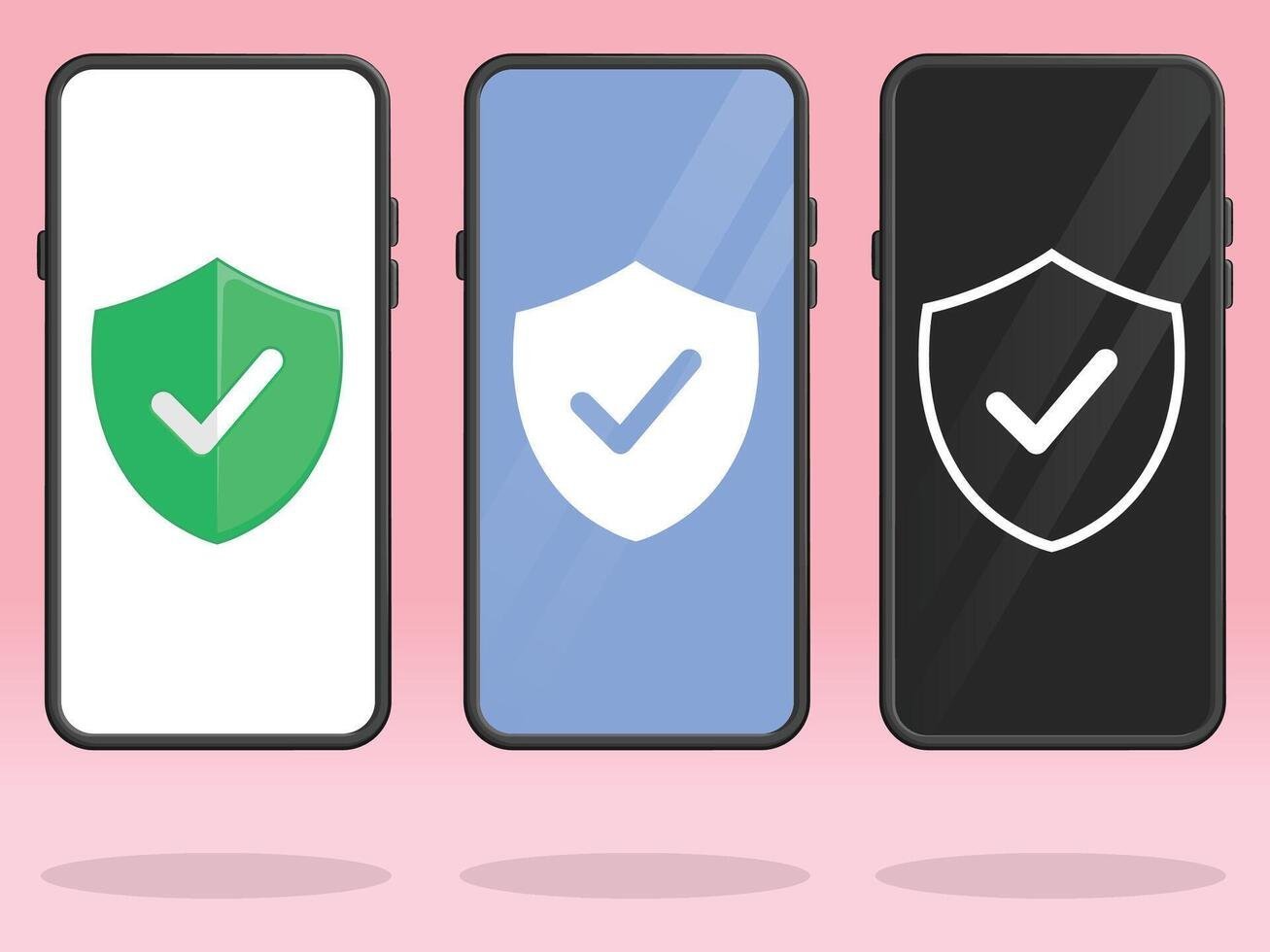
- Review permissions before installing. An AI chatbot doesn’t need your contacts, SMS, or call logs. If the permission list looks like surveillance, skip it.
- Keep Play Protect on. It’s in Play Store → Profile → Play Protect. Google’s Play Protect documentation explains what it scans. Don’t disable it.
- Update promptly. Security patches ship in updates. Auto-update over Wi-Fi is the set-and-forget option.
How to Install AI Apps Safely APK Guide: Verification Steps
If you must sideload, run this checklist — every item, every time:
- Source reputation: download only from the developer’s official site, GitHub releases page, or long-established APK repositories with verification systems. Random blogs and Telegram channels are malware pipelines.
- Signature verification: the APK’s cryptographic signature should match the developer’s other releases. Mismatched signature = repackaged = walk away.
- VirusTotal scan: upload the APK to VirusTotal (free) before installing. Multiple engine detections = delete it.
- Permission audit: Android shows requested permissions pre-install. An AI photo app requesting SMS access is a red flag the size of a billboard.
- Install, then watch: after installing, check battery and data usage for a week. Malware often reveals itself through background data exfiltration.
For a deeper dive on the risks, read are third-party AI APKs safe before you download anything.
Safe APK Sources, Ranked
Not all APK sources are equal. From safest to riskiest:
- The developer’s official website. The gold standard — the file comes straight from the source. Bookmark it.
- GitHub Releases pages. For open-source AI apps, this is the official distribution channel. Check that the repository is the genuine project (stars, history, linked from the official site).
- F-Droid. The reputable open-source app store — every app is built from published source code. Limited to FOSS apps, but everything there is trustworthy.
- Established APK repositories with signature verification. Sites like APKMirror verify that the APK’s cryptographic signature matches the developer’s Play Store releases. Good for region-locked official apps.
- Everything else. Random blogs, file hosts, Telegram channels, forums — treat as hostile until proven otherwise. The burden of proof is on the source, not on you.
When in doubt, ask: “why isn’t this on the Play Store?” Legitimate answers exist (region locks, FOSS philosophy, beta testing). “Premium unlocked” is never legitimate.
Understanding APK Signatures (The 60-Second Version)
Every APK is cryptographically signed by its developer — a digital fingerprint proving who built it. This is your most powerful verification tool:
- Matching signature = same developer. If the APK’s signature matches the Play Store version’s, it’s genuinely from that developer, even downloaded elsewhere.
- Mismatched signature = repackaged. Someone took the real app, modified it (possibly adding malware), and re-signed it. Android will actually refuse to install it over the original — that “app not installed” error is your phone protecting you.
- How to check: reputable APK repositories display signature info; compare against the developer’s published fingerprints when available. Free tools like APK Signature Verification apps automate the comparison.
You don’t need to understand the cryptography — just the rule: signature mismatch means walk away, no matter how tempting the download.
Red Flags: Walk Away Immediately If You See These
- “Premium unlocked,” “mod APK,” or “cracked” in the filename or description.
- The site has five download buttons and four of them are ads.
- The APK requests Device Admin privileges (this gives near-total control).
- No official website, no GitHub, no verifiable developer identity.
- Reviews or comments disabled on the download page.
- The app asks you to disable Play Protect to install. Legitimate apps never need this.
What To Do If You Installed Something Shady
- Don’t panic, act fast: uninstall the app immediately (Settings → Apps → Uninstall).
- Run a Play Protect scan (Play Store → Profile → Play Protect → Scan).
- Change passwords for important accounts, especially if you logged into anything while the app was installed. Start with email and banking.
- Check for Device Admin apps (Settings → Security → Device admin apps) and revoke anything suspicious — malware sometimes grants itself persistence here.
- When in doubt, factory reset. It’s drastic but definitive. Back up your photos and data first.
Frequently Asked Questions
Is it safe to install AI apps from APKs?
It can be, if the APK comes from the developer’s official site or a reputable repository, passes a VirusTotal scan, and requests sane permissions. Random-site APKs — especially “modded” ones — are one of the most common Android malware vectors. See are third-party AI APKs safe for the full risk breakdown.
Why isn’t my favorite AI app on the Play Store?
Usually regional rollout timing, or the developer distributes independently (common with open-source apps). Check the developer’s official website first — if they don’t offer an APK there, be skeptical of third-party sources.
Does the Play Store guarantee an app is safe?
No — malicious apps occasionally slip through, which is why checking developer names, reviews, and permissions still matters. But Play Store + Play Protect is orders of magnitude safer than random APK sites.
What is Play Protect and should I keep it on?
Play Protect is Google’s built-in malware scanning for Android. Yes, keep it on always — it scans apps before and after installation. Disabling it removes your main safety net.
Can I update sideloaded apps?
Only manually — sideloaded apps don’t auto-update through the Play Store. This is a genuine security downside: you’ll miss patches unless you track releases yourself.
The Bottom Line
The safe way to install AI apps on Android is boring on purpose: Play Store first, official sources only for APKs, verify everything, and treat “free premium” offers as the traps they are. AI apps are the most tempting malware lure on mobile right now precisely because everyone wants them — which means the cautious users are the ones who stay safe. When in doubt, don’t install it. No app is worth your bank login.

2 Comments