
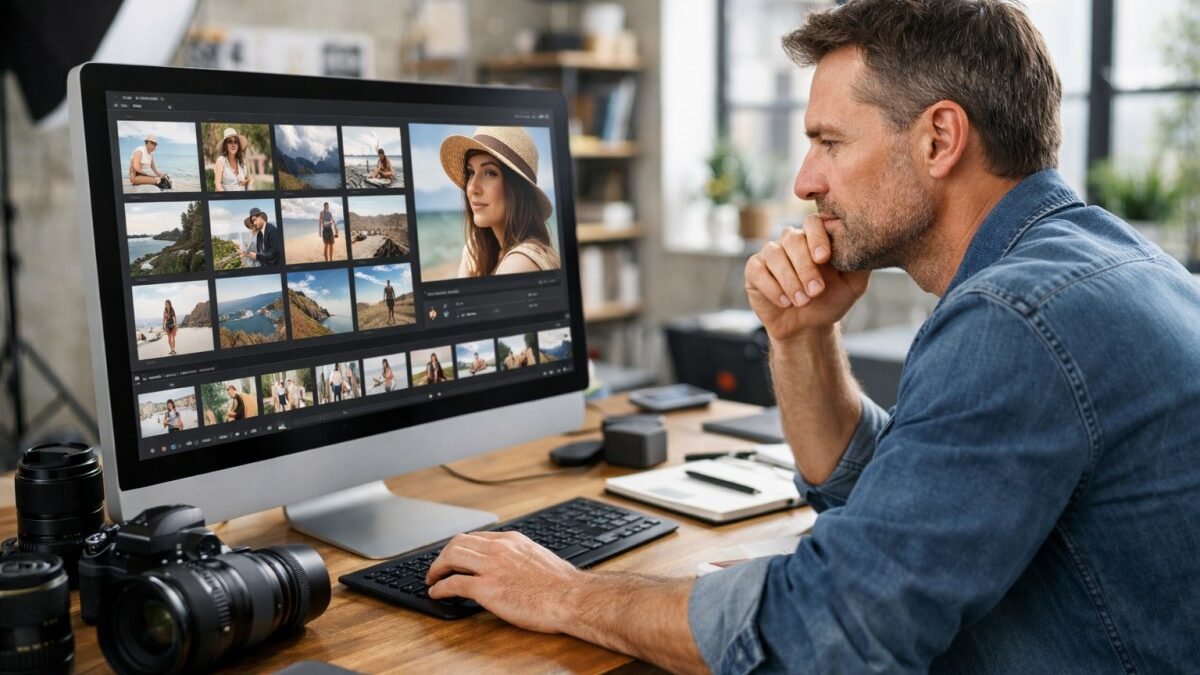
Can ChatGPT analyze images and screenshots? Yes — ChatGPT can analyze images and screenshots, and it’s one of those features people sleep on until they try it once. Upload a photo of a weird error message, a screenshot of a chart, a picture of your garden plant, and ChatGPT will actually look at it and tell you what it sees. I’ve used it to decode cryptic dashboard warnings, transcribe whiteboard notes, and identify a plant that was definitely not the “low maintenance” variety the label promised.
Here’s what it can do, where it falls short, and how to get the best results.
Can ChatGPT Analyze Images and Screenshots? What It Handles Well
On current versions (GPT-4o and later models), image understanding is built in. You upload an image — via the paperclip/plus button on web or mobile — and ask about it in plain language. Tasks it handles impressively well:
- Screenshots of errors: paste a stack trace or error dialog, get likely causes and fixes
- Documents and handwriting: transcribes whiteboards, notes, and printed pages (messy handwriting is hit-or-miss)
- Charts and graphs: describes trends, reads values off axes, summarizes what the data shows
- Photos of objects: identifies plants, products, landmarks, and everyday items
- Math and homework: reads handwritten equations and works through them step by step
- UI and design feedback: screenshot your app or slide deck and ask for critique
The screenshot use case is my favorite. Instead of typing out “there’s a red triangle with an exclamation mark next to…” you just show it. Debugging something visual this way saves an absurd amount of back-and-forth.
How to Get Accurate Results From Image Analysis
A few habits make a big difference:
- Upload the clearest version you have. Blurry, tiny, or heavily compressed images produce vague answers. Crop to the relevant part.
- Tell it what to focus on. “Look at the top-right corner of this screenshot” beats “what’s wrong here?”
- Ask follow-ups. “Read the exact text in the dialog box” or “what are the axis labels?” forces precision.
- Provide context it can’t see. It doesn’t know your photo is from 2019 unless you say so.
One thing to keep in mind: image analysis quality varies between the free and paid tiers, since they may run on different models. If precision matters — say you’re analyzing a medical scan or a legal document — it’s worth knowing how accurate ChatGPT is for factual questions before you rely on its reading.
Where It Falls Short (Honest Limitations)
It’s not magic, and the failures are worth knowing:
- Fine detail: small text in a busy image, subtle differences between similar objects — it guesses, confidently
- Counting: “how many people in this photo” is notoriously unreliable
- Faces: it deliberately won’t identify real people in photos, and that’s by design
- Recent visual content: it may misread memes, new product designs, or anything after its training data
- Hallucinated details: sometimes it describes things that aren’t in the image — always verify important reads
For research-grade image work, you might want to understand the difference between ChatGPT search and deep research — image analysis answers a “what am I looking at” question, while research modes answer “what does the world say about this.”
Privacy: Think Before You Upload
This matters more than people realize. Screenshots often contain account numbers, addresses, or other people’s information in the background. Before uploading:
- Crop out anything sensitive — notification bars, open tabs, personal details
- Remember uploads may be used for training depending on your settings (check the data controls)
- Never upload IDs, financial documents, or anyone else’s private photos
If you’re unsure where the line is, read up on what you should never ask ChatGPT to do — it covers the privacy boundaries clearly.
Real-World Examples: What Image Analysis Is Good For
A few scenarios from actual use:
- Tech support: screenshot a cryptic error → “What does this mean and how do I fix it?” — faster than any forum.
- Shopping: photo of a plant, furniture style, or ingredient label → identification and details in seconds.
- Documents: whiteboard photo after a meeting → “Transcribe this and organize into action items.”
- Learning: photo of a textbook diagram → “Explain this like I’m a beginner.”
- Travel: photo of a sign in another language → translation plus context.
The pattern: anything you’d otherwise describe to get help with, just show it instead. Visual input skips the hardest part — putting what you see into words.
Frequently Asked Questions
Is ChatGPT image analysis free?
Yes, with usage limits that vary by plan. Paid tiers get higher limits and sometimes better accuracy on difficult images.
Can it read handwriting?
Neat handwriting: usually yes. Doctor’s-prescription scrawl: unreliable. For important transcriptions, always verify.
Can it identify people in photos?
No — it deliberately won’t identify real individuals, and that’s a privacy feature, not a bug.
What image quality works best?
Clear, well-lit, cropped to the relevant area. Screenshots at native resolution are ideal; compressed social-media re-uploads degrade accuracy noticeably.
The Takeaway
Image and screenshot analysis is one of ChatGPT’s most practical everyday features: snap, upload, ask. Use it for errors, documents, charts, and “what is this thing” moments. Give it clear images and specific questions, verify anything important, and keep sensitive content out of your uploads. Once it becomes a habit, you’ll wonder how you debugged anything by typing descriptions. Try it from ChatGPT on OpenAI’s site — image upload works on both free and paid plans.


1 Comment