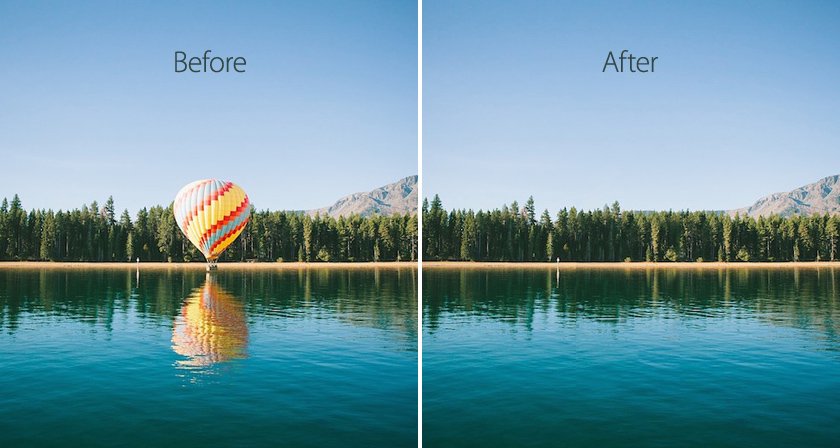
Can u remove stuff from images on Midjourney version 7? Yes — Midjourney’s editor lets you erase unwanted objects, people, and distractions from your generations, and version 7 improved these editing capabilities. Whether it’s a photobombing stranger, a stray object ruining your composition, or just clutter you don’t want, here’s exactly how to clean up your Midjourney images.
Can You Remove Stuff From Images on Midjourney Version 7? Yes — Here’s How
Using the Midjourney editor
- Open your image in the editor. From your gallery or creation view, open the image you want to clean up and access the edit/regenerate tools.
- Select the area to remove. Use the brush or selection tool to paint over the unwanted object — the person, the sign, the distraction. Be generous with the selection; include a margin around the object.
- Describe what should replace it (or leave the prompt empty for automatic fill). For clean removal, prompts like “empty background,” “clear sky,” or describing the surrounding scene work well. Often, leaving it blank lets the AI infer the natural background — which is usually what you want for removals.
- Generate the edit and review. The AI fills the selected area with contextually appropriate content.
- Iterate if needed. Complex removals (overlapping subjects, intricate backgrounds) may take 2–3 attempts. Each is quick.
What version 7 improved
Version 7 brought better coherence to edited regions — removals blend more seamlessly with surrounding content, handle complex backgrounds more intelligently, and preserve lighting consistency better than earlier versions. The editor experience is also more integrated: less switching between tools, more fluid iteration. If you learned editing on older versions, v7 feels like the same workflow with fewer frustrating failures.
What Removes Cleanly vs. What Struggles
Easy removals
- Small background objects: signs, trash cans, stray items against simple backgrounds — nearly perfect results.
- Distant people: background figures in landscapes and street scenes remove cleanly.
- Blemishes and artifacts: small AI glitches, watermarks-ish artifacts, minor weirdness.
- Sky and simple textures: anything against skies, walls, water, or other uniform areas.
Harder removals
- Overlapping foreground subjects: removing something in front of your main subject requires the AI to reconstruct what’s behind — quality varies.
- Complex patterns: intricate textiles, detailed architecture, text-heavy backgrounds are harder to fill convincingly.
- Reflections and shadows: removing an object but leaving its reflection or shadow looks wrong — select these too.
- Hands and faces: if the unwanted element interacts with people (someone’s hand on a shoulder), removal gets tricky. Our hand-fixing guide (fixing AI hands) covers related repair techniques.
Pro Tips for Clean Removals
- Remove before upscaling. Edit at the base resolution, then upscale the cleaned image. Upscaling first bakes in flaws at higher fidelity.
- Select shadows and reflections belonging to removed objects — orphaned shadows are the #1 tell of edited removals.
- Work in passes for multiple objects: remove one, review, remove the next. Batch-selecting everything at once reduces quality.
- Check at full zoom after removal. Small blending artifacts hide at thumbnail size.
- Regenerate rather than repair when removal keeps failing — sometimes a fresh generation without the unwanted element is faster than fighting the editor.
- Prevent instead of remove: negative prompts (“no people in background,” “clean uncluttered scene”) reduce the need for removal in the first place.
When Midjourney’s Editor Isn’t Enough
For removals beyond the editor’s comfort zone, export and finish elsewhere:
- Photoshop Generative Fill: more control, better blending with existing Photoshop workflows — the professional’s choice for difficult removals.
- Stable Diffusion inpainting: free, local, fully controllable (our inpainting guide: inpainting). More setup, more power.
- Traditional clone/heal: for simple backgrounds, manual tools are sometimes faster than AI — don’t overlook the basics.
The pattern: Midjourney’s editor handles 80% of removals conveniently; the remaining 20% goes to specialized tools. Knowing when to switch saves frustration.
Beyond Removal: What Else the Editor Does
Removal is one editing capability among several worth knowing:
- Adding elements: select an area, prompt new content — the inverse of removal.
- Modifying details: change colors, swap objects, adjust expressions via targeted regeneration.
- Extending images: pan/zoom-out features expand the canvas (related to outpainting: outpainting guide).
- Restyling regions: apply different aesthetics to selected areas while preserving the rest.
Removal for Privacy and Safety
One more legitimate use worth highlighting: removing sensitive content from your own images before sharing. License plates, house numbers, faces of bystanders in street photography, personal documents accidentally in frame — the editor’s removal tools are genuinely useful for privacy hygiene. Make it a habit to scan AI-assisted or AI-upscaled personal photos for identifying details before posting publicly. It’s a small step that prevents real problems, and it’s one of the least controversial uses of the technology.
For more background, see Midjourney’s official site.
The Takeaway
Yes, Midjourney v7 removes unwanted stuff from images effectively through its editor: select, prompt (or don’t), generate, iterate. It handles simple removals beautifully and complex ones adequately, with v7 improving blend quality notably. For the hardest cases, export to Photoshop or Stable Diffusion inpainting. And remember the meta-lesson: preventing unwanted elements with thoughtful prompting beats removing them every time.