
Gemini doesn’t just chat — it creates images, including photorealistic ones. How to use Gemini AI photo generator well (and understand its limits around real people and photorealism) is worth learning, because Google’s image capabilities are among the best available — and largely free. Here’s the practical guide.
How to Use Gemini AI Photo Generator: Basics
- Open Gemini (web or app) and type a description: “Generate an image of a cozy mountain cabin at sunset, photorealistic.”
- Refine conversationally: “Make it winter, add smoke from the chimney.” — iterate by talking
- Download or share the result directly
Free-tier users get image generation with limits; paid tiers get more. The quality — especially for photorealistic scenes — is genuinely impressive.
What It’s Great At
- Photorealistic scenes: landscapes, objects, interiors — remarkably convincing
- Creative concepts: “a library inside a giant tree” — imagination to image fast
- Style variety: specify watercolor, 3D render, vintage poster, anime…
- Editing existing photos: upload a photo and describe changes — “make the sky sunset colors”
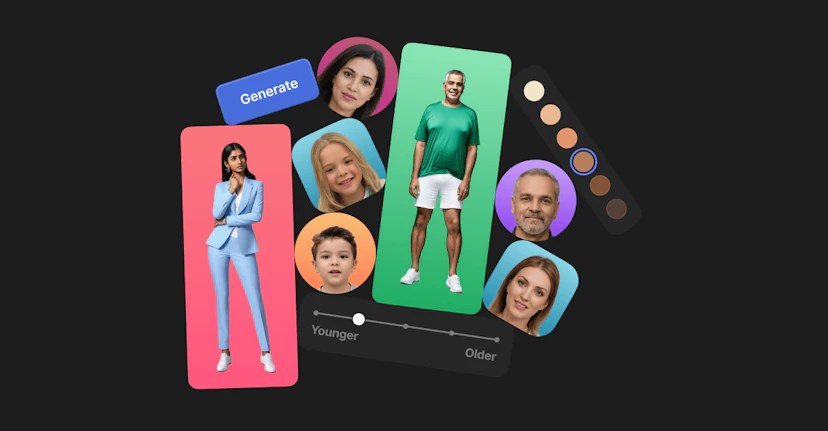
- People (with limits): generates fictional people; cannot generate real, identifiable individuals — this is a firm policy boundary
Prompting for Better Photos
- Specify photorealism explicitly if that’s what you want — otherwise it may default stylized
- Describe lighting: “golden hour,” “soft studio light,” “neon night” — lighting words transform results
- Camera language helps: “85mm portrait,” “aerial drone shot,” “macro photography”
- Set the mood: cozy, dramatic, serene — mood words guide the aesthetic
- Iterate, don’t restart: refine the good ones rather than regenerating from scratch
Limits and Policies
- No real people: can’t generate identifiable real individuals — firm boundary
- Watermarking/synthesis labels: AI-generated images may carry markers — check before professional use
- Content policies: standard safety filters apply
- Free-tier caps: free image generation limits are real but reasonable for casual use
Going Further
- For the basics of the platform: what Google Gemini is and how to access it
- Mobile creation: Gemini on iPhone handles image gen well — snap inspiration, generate variations
- Technical users: Gemini’s coding help pairs with image gen for complete project mockups
Getting Great Results From Gemini’s Image Generation
Image generation is free in Gemini — here’s how to use it well:
- Be descriptively specific: “A cozy reading nook, warm lamp light, rain on the window, watercolor style” beats “a nice room.” Style, lighting, mood, and medium matter.
- Iterate conversationally: “Make it brighter,” “add a cat,” “try a more cinematic look” — refinement through dialogue is the advantage over standalone generators.
- Ask for variations: “Give me 3 different styles of the same scene” — explore options before committing.
- Combine with knowledge: “Generate an image of [historical scene], historically accurate to [period]” — Gemini’s knowledge informs the visuals.
- Edit via description: describe changes to generated images conversationally — no Photoshop needed for basic tweaks.
The killer feature: you can discuss the image with the AI that made it. “Why does the lighting look off?” gets an explanation and a fix — a feedback loop standalone image generators can’t match.
What It’s Best (and Worst) For
- Great for: illustrations, concept art, social media visuals, brainstorming visuals, fun personal projects.
- Good for: product mockup ideas, presentation graphics, blog headers.
- Weak for: photorealistic precision work, text-heavy images (AI still mangles text), exact brand assets.
- Remember: generated images may have usage considerations for commercial work — check current terms.
Frequently Asked Questions
Is image generation really free?
Yes — included in Gemini’s free tier, unlike some competitors that gate it behind paid plans. Limits may apply during peak demand.
How does it compare to Midjourney?
Midjourney still leads for artistic quality; Gemini wins for convenience, conversation, and cost (free). Different tools for different needs.
Can it edit my photos?
It can generate and modify images conversationally — describe the change you want. For precise photo editing, dedicated tools still win.
Style Words That Transform Results
Keep a cheat sheet of style modifiers: cinematic, watercolor, minimalist, photorealistic, retro poster, flat illustration, dramatic lighting, soft morning light. Adding 2–3 style words to any prompt turns generic output into striking imagery. Style vocabulary is the highest-leverage image-prompting skill.
Composition matters too: specify close-up, wide shot, overhead view — the AI defaults to boring center-framed shots without direction. A simple composition word adds professional polish instantly.
Start creating today: open Gemini, describe an image you’ve been picturing, add two style words, and iterate. Your first AI-generated visual is one conversation away — and it’s free.
The gap between imagining and creating has never been smaller. Use it.
Every image you generate teaches you something about visual prompting — the skill compounds fast.
The Takeaway
Gemini’s AI photo generator = describe it conversationally, refine by talking, download the result. Excellent at photorealistic scenes and creative concepts, firm boundary on real people, generous free limits. Use camera language and lighting words for the best results. It’s one of the strongest free image tools available — try a sunset cabin at gemini.google.com and see for yourself.




1 Comment